![Sprockets-Logo-Icon.png]](https://hiring.sprockets.ai/hs-fs/hubfs/Sprockets-Logo-Icon.png?height=40&name=Sprockets-Logo-Icon.png)
Sprockets Onboarding Quiz
Use this interactive quiz to help admins and hiring managers practice where to click, what to review, and which actions keep hiring organized in Sprockets.
Admin Setup
Start with the Admin tab and the core setup tiles your team uses before launch.
Where should admins start when setting up the workspace?
Admin setup lives in the main navigation Admin tab. This is where admins manage setup progress, users, locations, forms, templates, Success Profiles, company settings, application settings, and data exports.
Which tile should you open to add team members and assign roles?
Open Admin, then use the Users tile to manage active/deactivated users and add new users with the right access.
Related walkthrough
What should be reviewed when setting up locations?
The Locations page helps confirm each location is accurate before jobs and managers are tied to hiring activity.
Related walkthrough
What is the purpose of tags in Sprockets?
Tags help teams organize information and improve filtering/reporting across the platform.
Related walkthrough
Where do you manage the questions candidates complete when they apply?
Application forms control the questions, default fields, scoring criteria, and knockout-style inputs candidates complete during the application process.
Related walkthrough
When building an application form, what should you add before saving?
A strong application form includes a clear form name, scoring criteria, default fields, and the role-specific questions needed for screening.
Related walkthrough
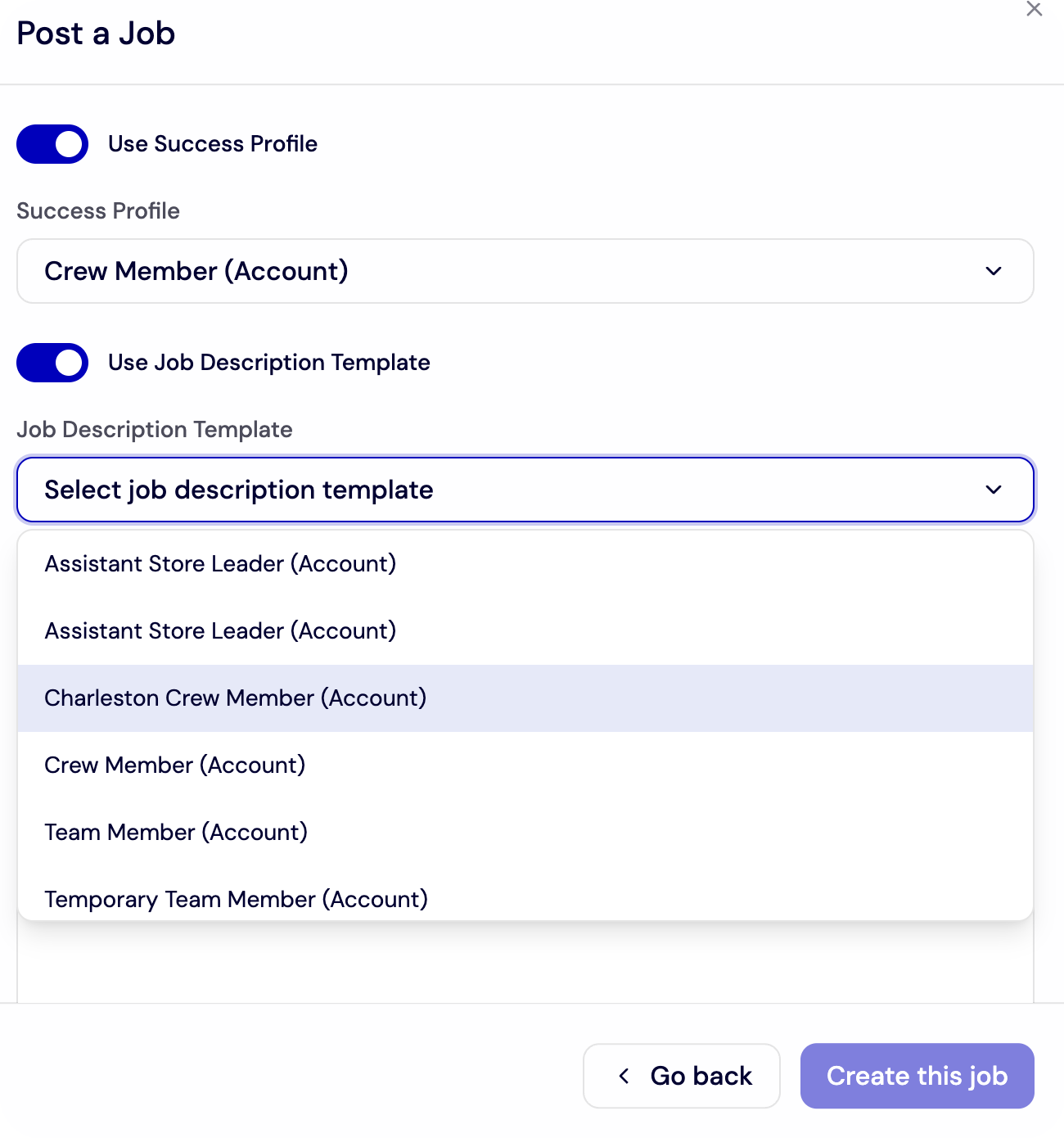
Which admin tile is used to create reusable job posting content?
Job Description Templates keep job posting content consistent and can include dynamic variables like location, job name, and wage.
Helpful screenshot
Related walkthrough
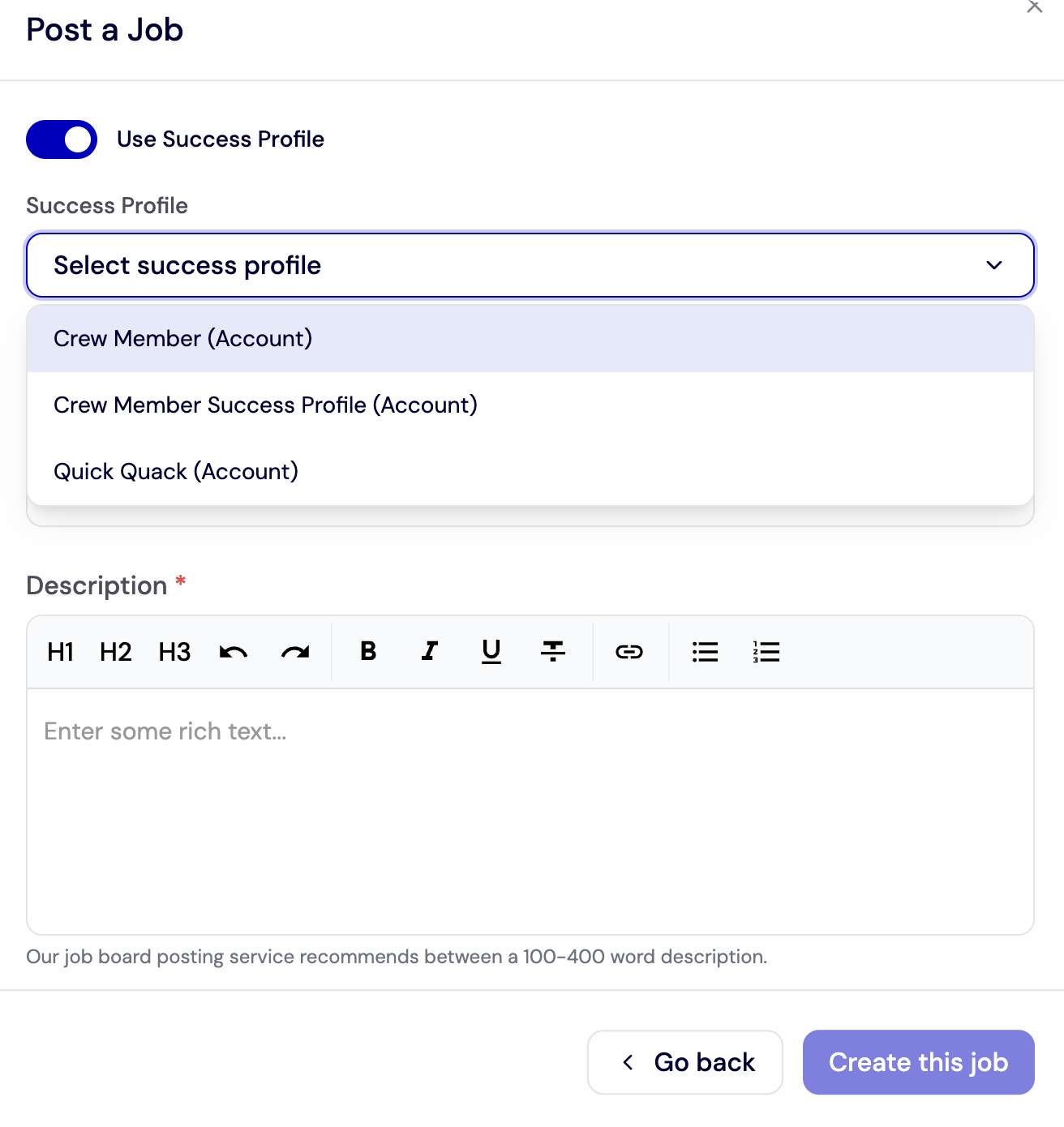
Which sections are completed when creating a Success Profile?
Success Profiles define what a strong-fit candidate looks like for a role using Personality, Needs, and Values sections.
Helpful screenshot
Related walkthrough
Where do admins review candidate-facing company details and branding?
Company Settings is where teams review the company name, legal name, industry, sub-industry, selected brand, and applicant-facing preview.
Related walkthrough
What can admins export from the Data Export tile?
The Data Export tile lets admins export users or locations, and the export is sent to the user's email address.
Related walkthrough
Manager Setup
Personal Settings and manager readiness checks before candidates begin moving through the pipeline.
Where should managers go to update their personal setup?
Manager personal setup is handled from the top-right name dropdown, then Personal Settings.
Helpful screenshot
Related walkthrough
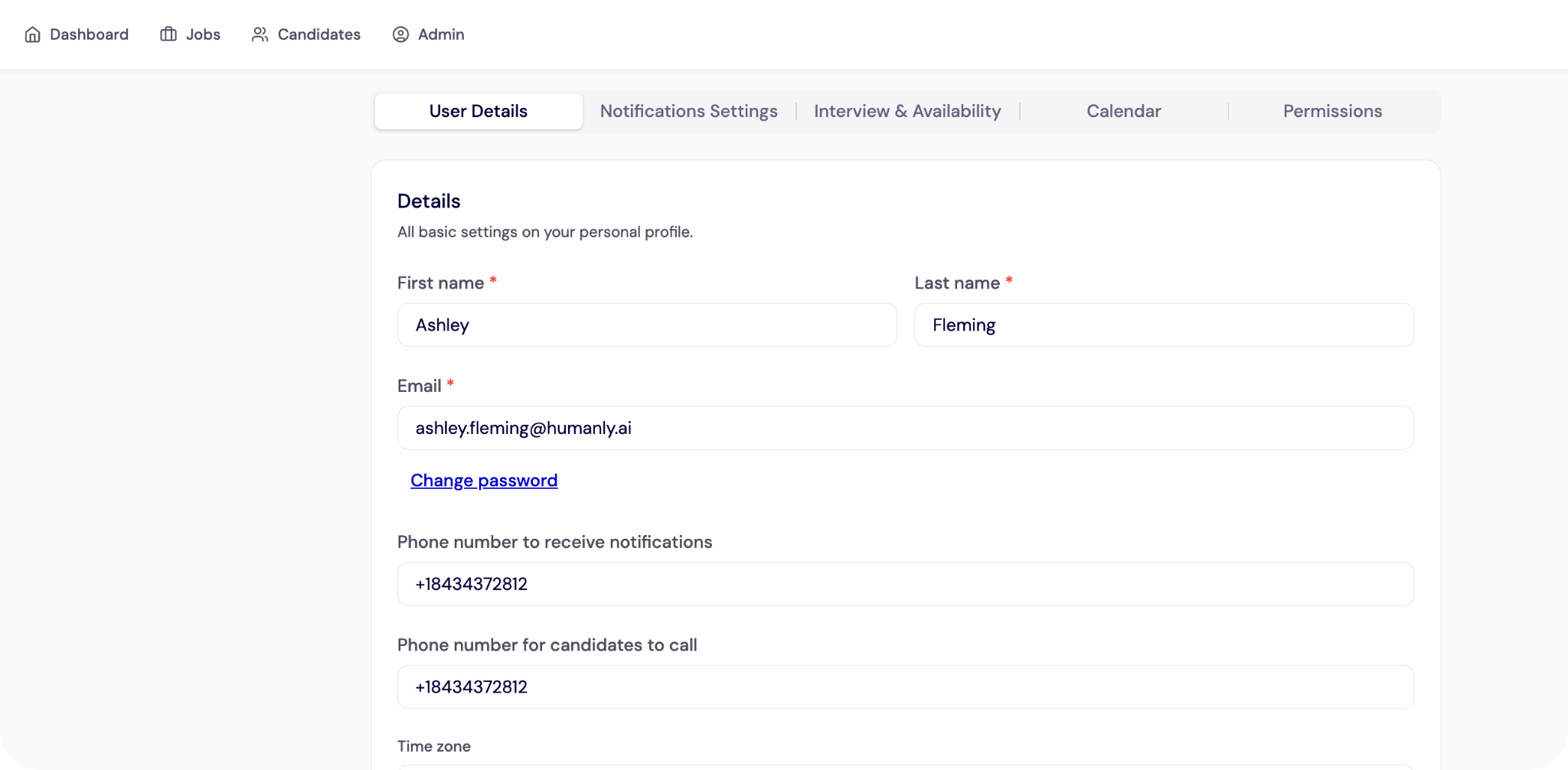
Which Personal Settings tab should managers use to confirm name, email, phone number, and time zone?
The User Details tab is where managers confirm personal information before using Sprockets with candidates.
Helpful screenshot
Related walkthrough
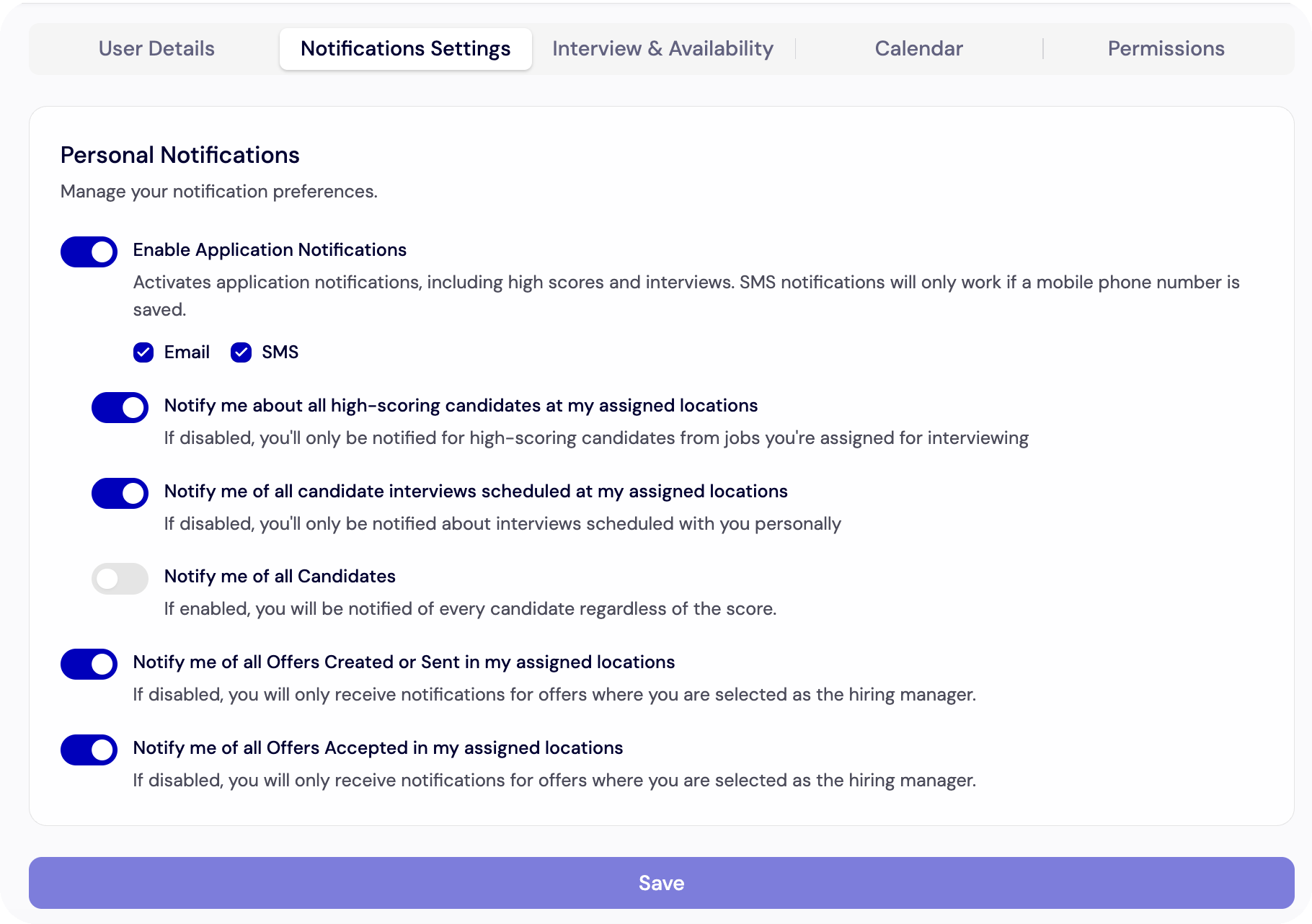
Where do managers choose the hiring alerts they want to receive?
Managers use the Notification Settings tab to turn on the alerts they want and save their preferences.
Helpful screenshot
Related walkthrough
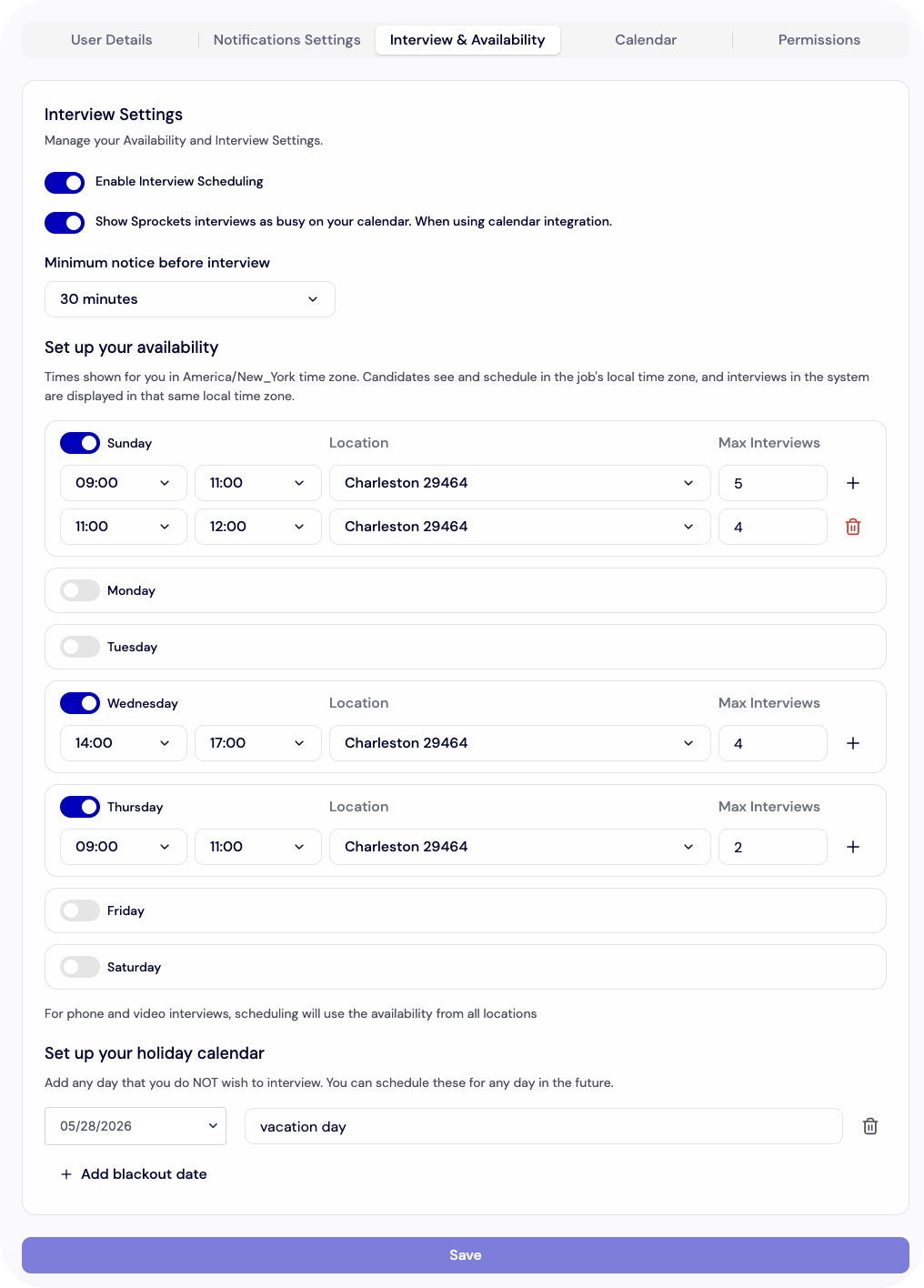
Which tab controls when candidates can book interviews with a manager?
The Interview & Availability tab is where managers add interview days, times, windows, capacity, and blackout dates.
Helpful screenshot
Related walkthrough
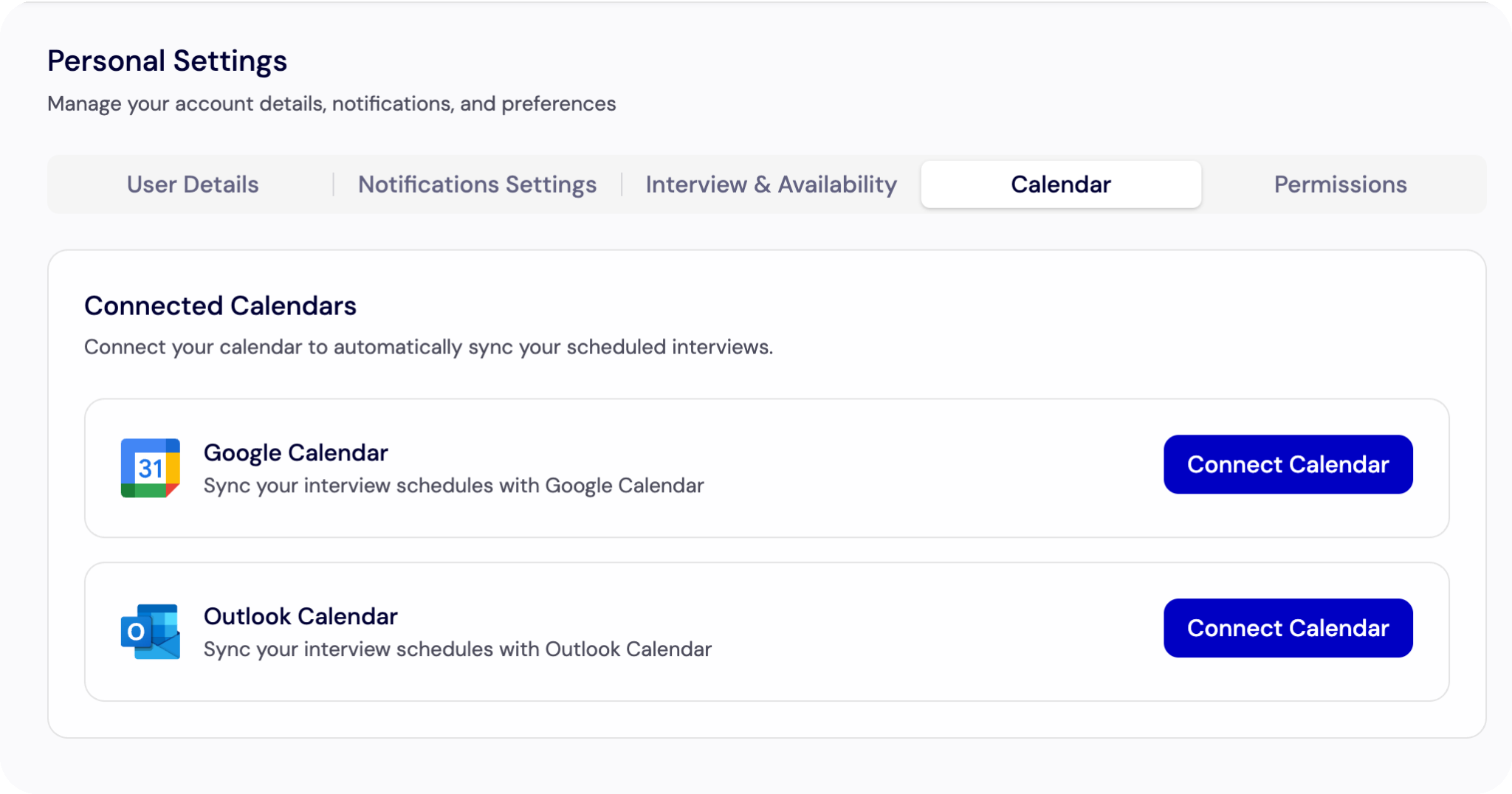
Which tab should managers open to connect Google or Outlook?
The Calendar tab is where managers connect Google or Outlook so interviews appear where they already work.
Helpful screenshot
Related walkthrough
Jobs
Job setup and job tile actions managers may use day to day.
Where do job setup and job actions live?
Job setup and job actions are managed from the main navigation Jobs tab.
Helpful screenshot

Related walkthrough
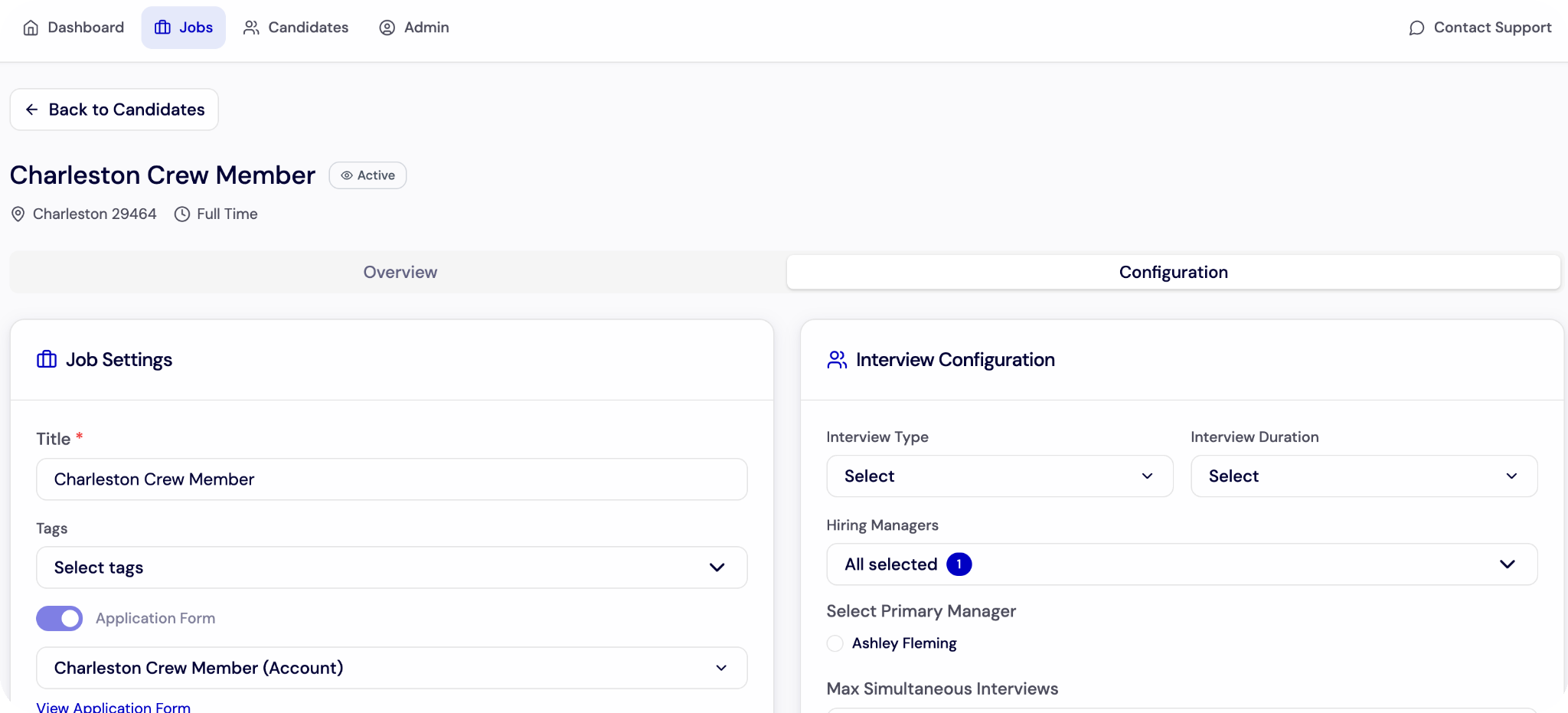
Which control opens the settings for a specific job posting?
Use the gear icon on a job tile to open job settings for that posting.
Helpful screenshot
Related walkthrough
Which control opens More Actions for a job, such as QR codes, invite links, and removal?
Use the three-dot menu to access job quick actions, including Invite Candidates, View Application Form, Download QR Code, copy links, and Remove Job.
Helpful screenshot
Related walkthrough
Candidates
Where should managers start when reviewing applicants?
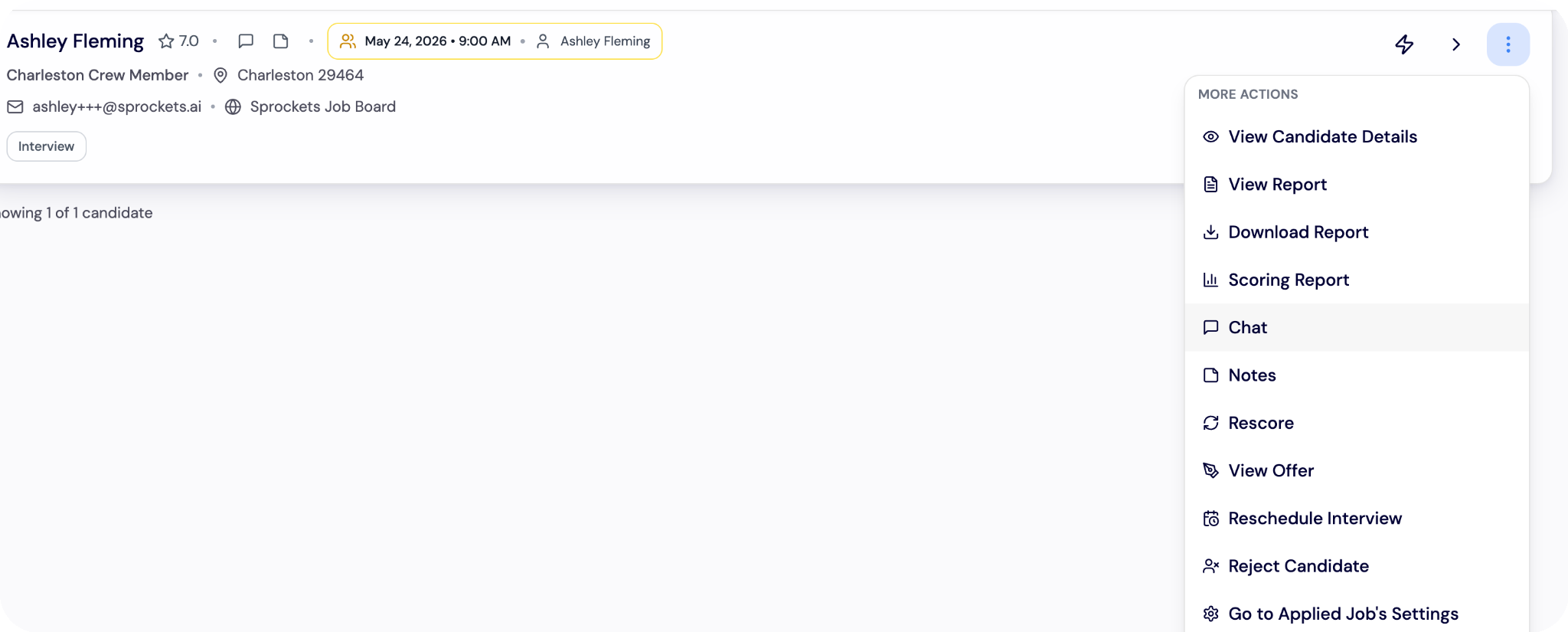
Candidate workflows live in the Candidates tab. Managers can review cards, use filters, and open profiles from there.
Helpful screenshot
Related walkthrough
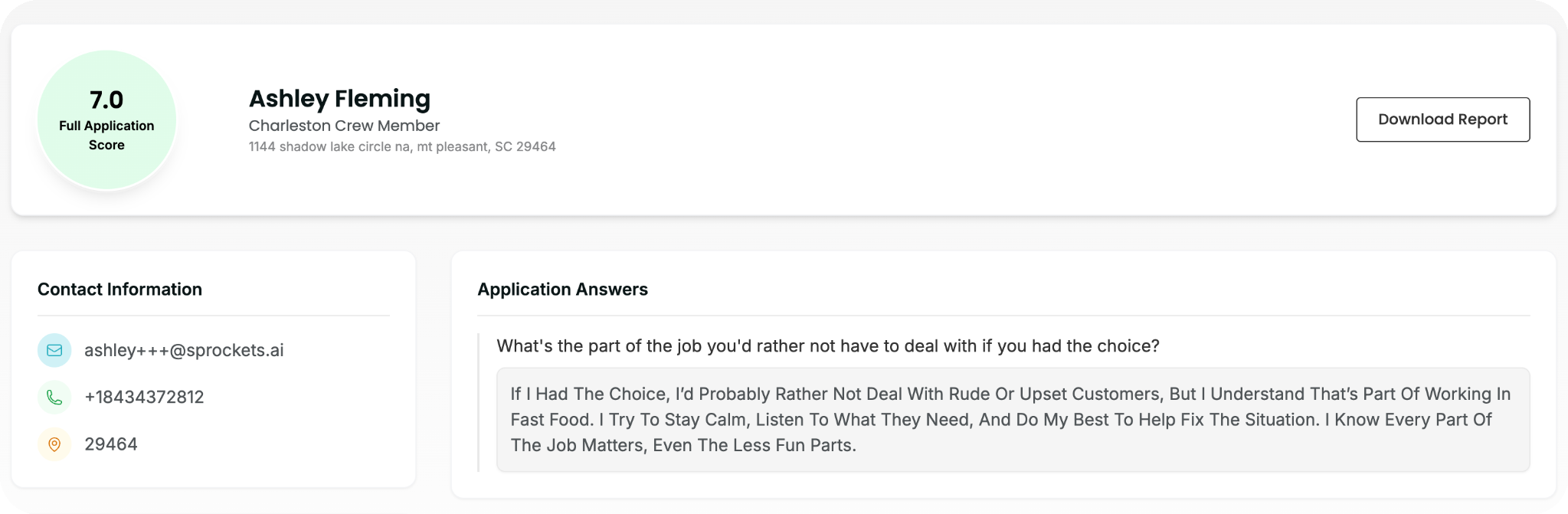
What should a manager click to open the full candidate profile?
Clicking the candidate card opens the full profile, where managers can review answers, scores, notes, messages, documents, and activity.
Helpful screenshot
Related walkthrough
How does a manager update a candidate's stage?
Candidate stages should be updated after a decision so the candidate record stays accurate.
Helpful screenshot
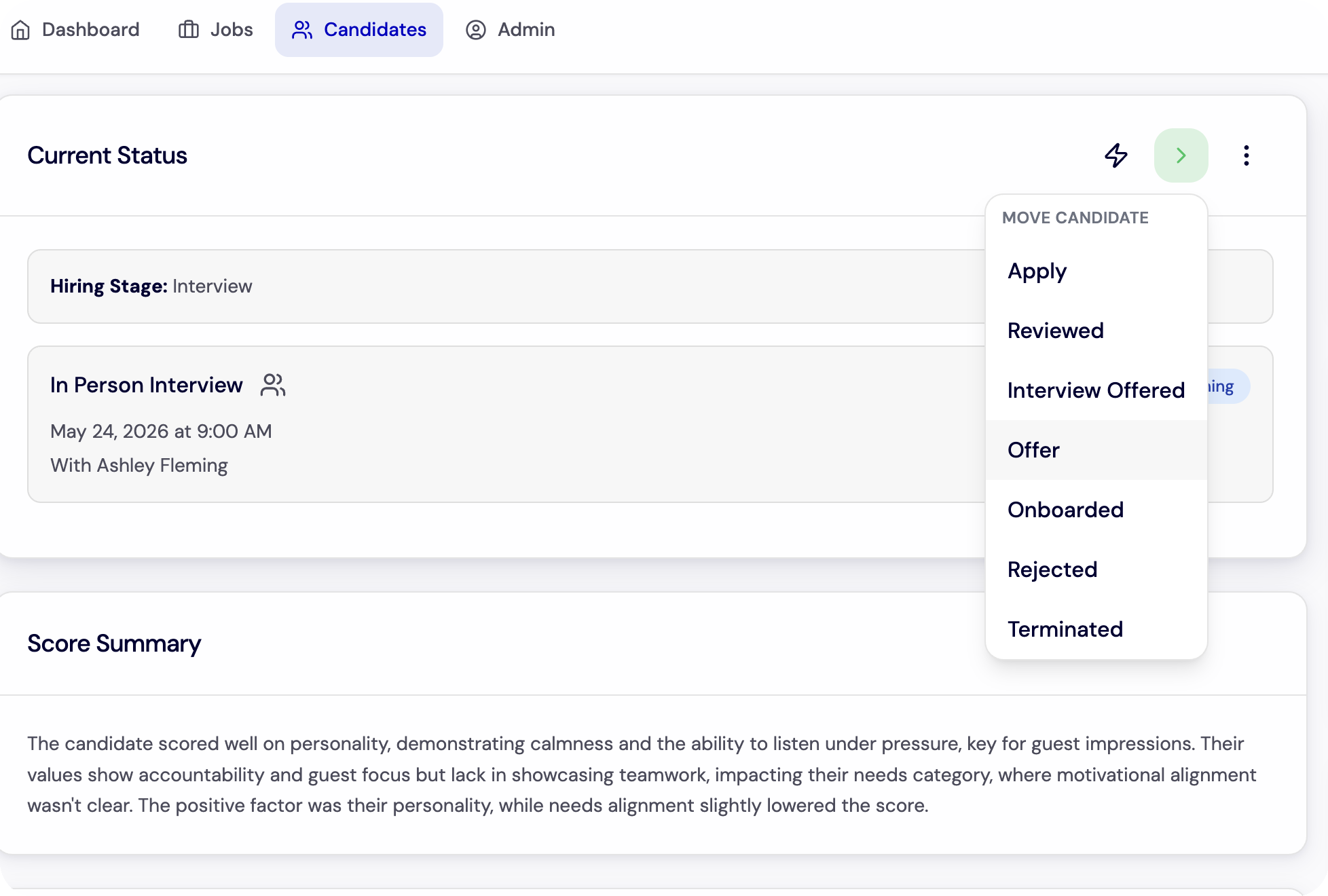
What is the right path to schedule an interview?
Managers schedule interviews from the candidate profile using saved availability and connected calendar settings.
Helpful screenshot
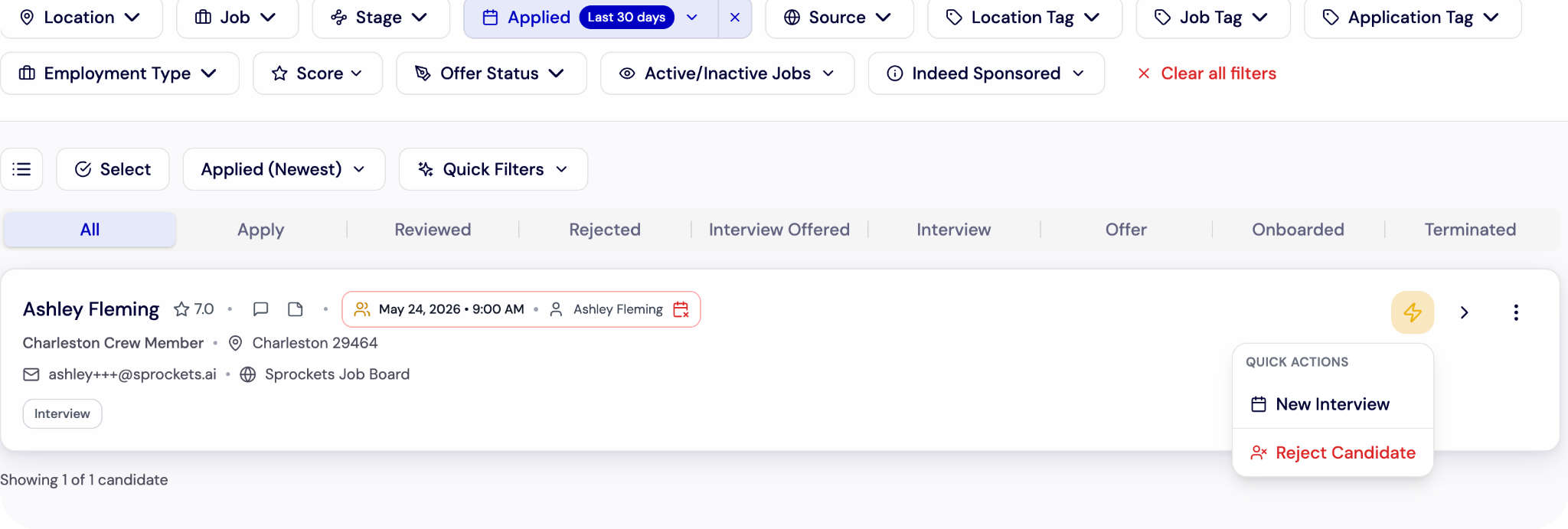
Related walkthrough
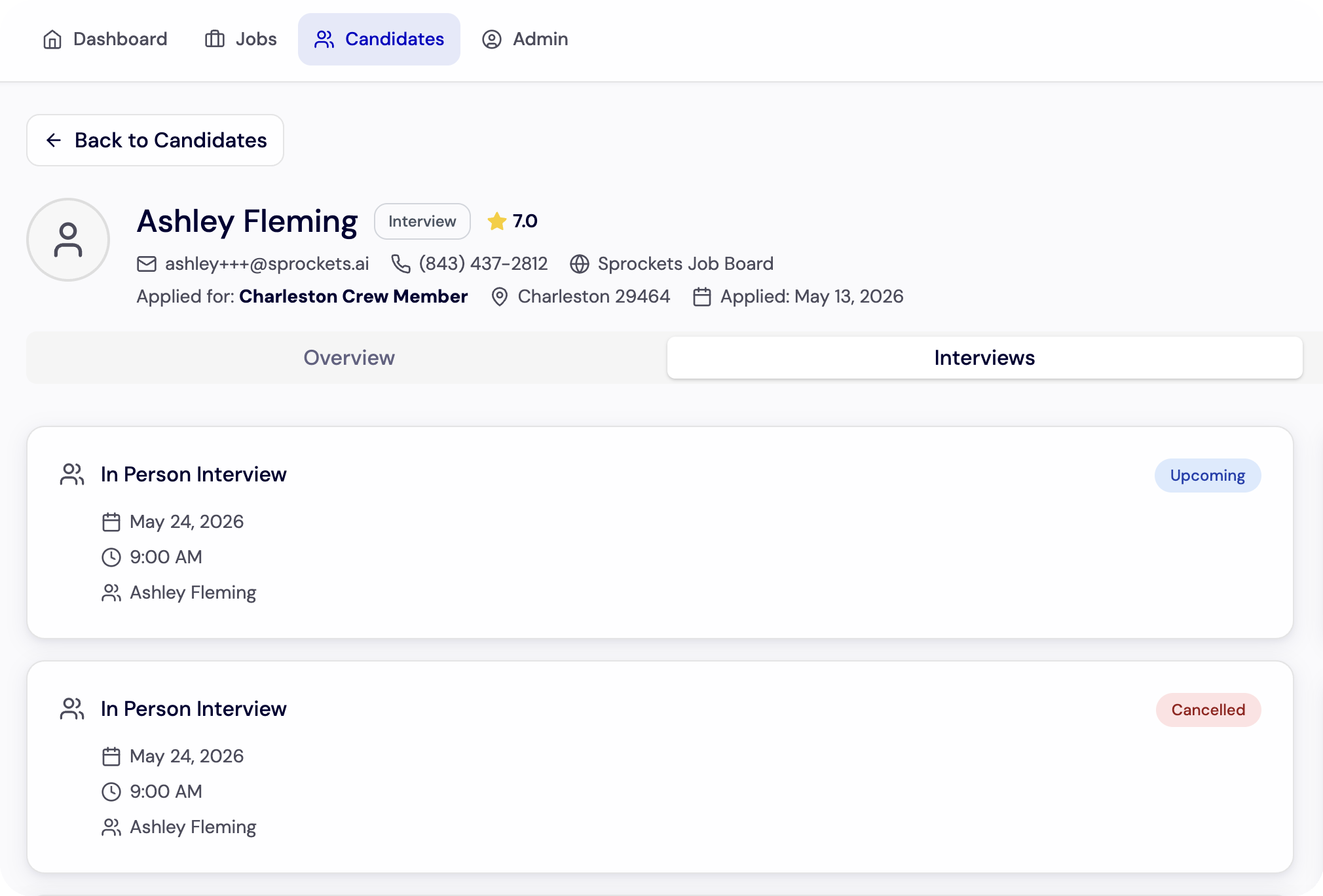
Where can managers find a scheduled interview to cancel or reschedule?
Open the candidate profile, then use the Interviews tab to find the upcoming interview and cancel or reschedule it.
Helpful screenshot
Related walkthrough
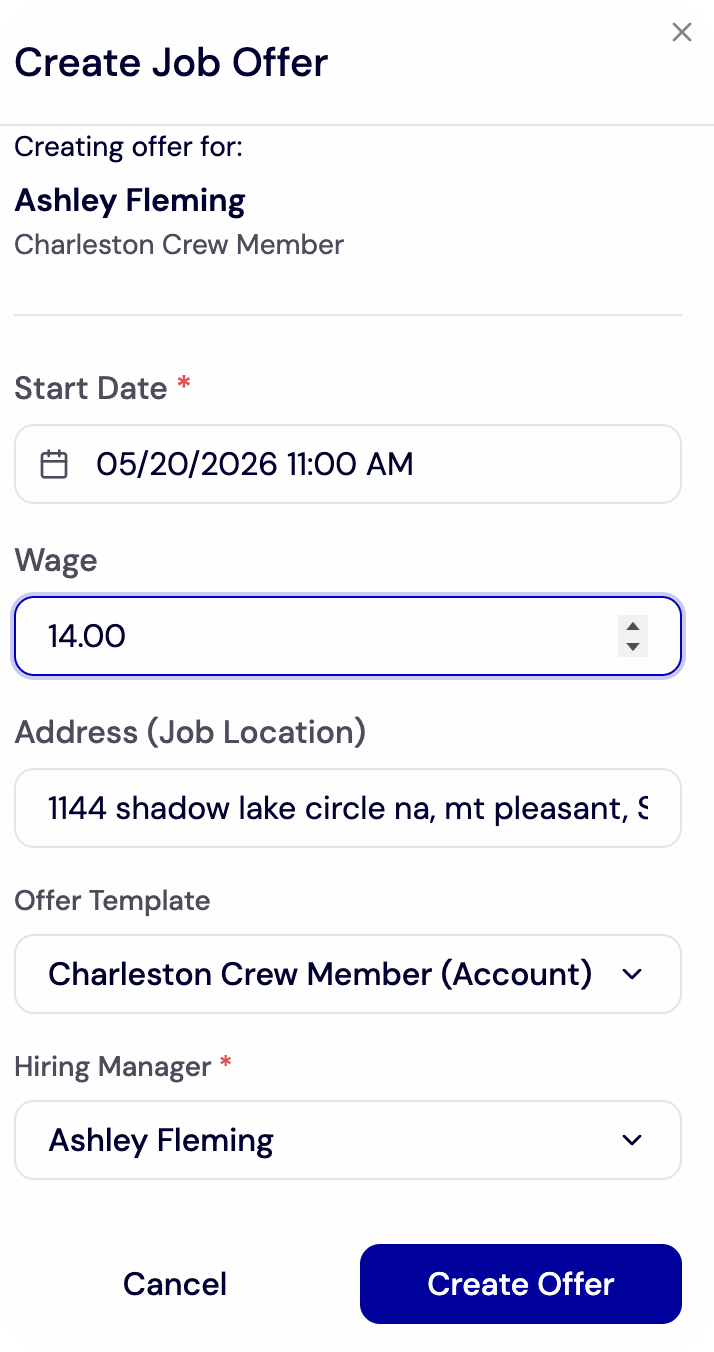
Where should a manager start when sending an offer?
Offer sending starts from the candidate profile after the hiring decision is made. Managers add wage, start date, job, location, and manager details before sending.
Helpful screenshot
Related walkthrough
Where should a manager send or review candidate messages?
Candidate messages stay connected to the candidate record, making it easier to review history before replying.
Helpful screenshot
Related walkthrough