![Sprockets-Logo-Icon.png]](https://hiring.sprockets.ai/hs-fs/hubfs/Sprockets-Logo-Icon.png?height=40&name=Sprockets-Logo-Icon.png)
Automatically Send Candidates the Sprockets Survey
What this article covers
- How Sprockets works with Indeed.
- Where to add or send the Sprockets survey link.
- How to confirm candidates can move through your hiring workflow.
Step 1: Log in to the Sprockets Platform
Go to hire.sprockets.ai and enter your login credentials.Step 2: Navigate to Company Settings
After logging in, click on your username in the top-right corner of the dashboard and then click “Company Settings.”
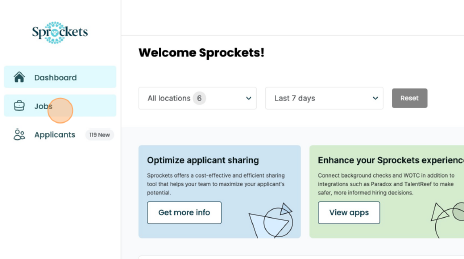
Step 3: Click on the Jobs Tab
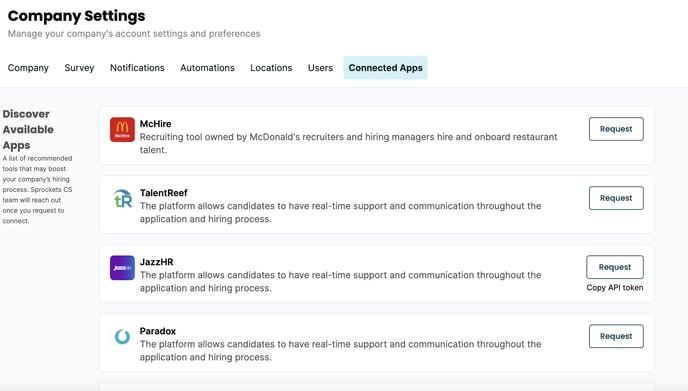
Step 4: Click on the Connected Apps Tab
The 'Apps Tab' will show all apps that connect to the Sprockets platform.
Step 5: Configure Automatically Send Pre-Interview Questions
Scroll to the bottom of the page and click configure on right side to automatically-2.png?width=688&height=145&name=Screenshot%202024-01-25%20at%206_02_44%20PM%20(2)-2.png) Step 6: Select Location and Copy the Email
Step 6: Select Location and Copy the Email
-2.png?width=688&height=286&name=Screenshot%202024-01-25%20at%206_03_35%20PM%20(2)-2.png)
Step 7: Log into Indeed
Select the “Jobs” tab
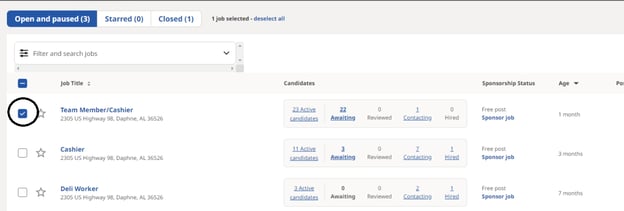
Step 8: Select the Job you Want to Have Surveys Automatically Send to the Candidates
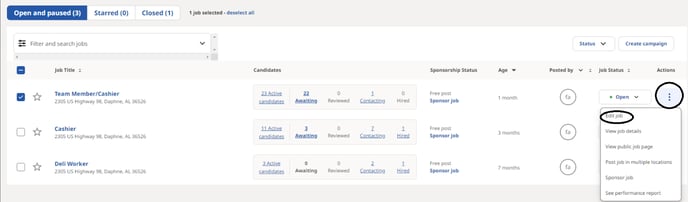
Step 9: Under the "Actions" column select "Edit Job"
Step 10: Go to the Application Settings
Step 11: Select "Send application updates to."
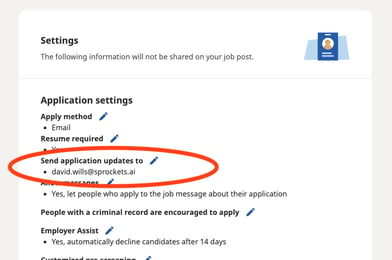
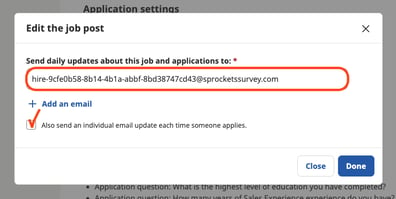
Step 12: Paste in the Email Address you Copied from Sprockets
Make sure to check the “Also send an individual email update each time someone applies.” (Note: Ensure the copied email address is added and do not delete any current email address)
Step 13: Select "Confirm"
The candidate will receive the below email.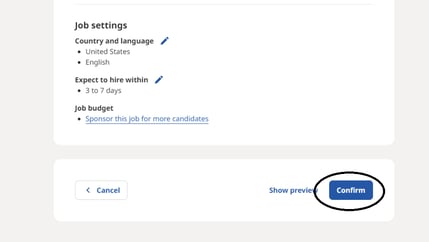

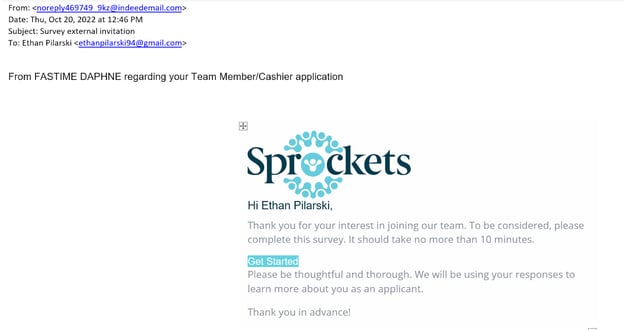
Note: Do this in edit mode after you have already created the job posting, otherwise Indeed will force you to create a free account for this email address.
Need help?
If you are unsure which link, source ID, or setup option to use, contact your Sprockets support team before updating live candidate workflows.