![Sprockets-Logo-Icon.png]](https://hiring.sprockets.ai/hs-fs/hubfs/Sprockets-Logo-Icon.png?height=40&name=Sprockets-Logo-Icon.png)
Make Life Easier With a Seamless Connection Between the Two Platforms
What this article covers
- How Sprockets works with JazzHR.
- Where to add or send the Sprockets survey link.
- How to confirm applicants can move through your hiring workflow.
Set up the Integration
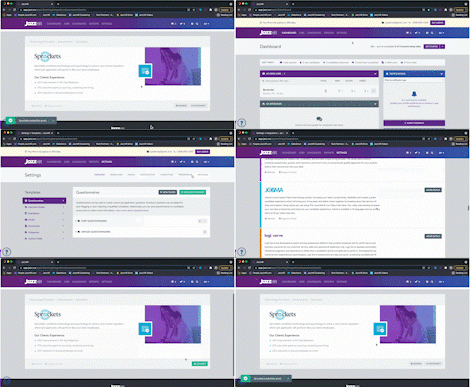
- Click Settings.
- Click Integrations.
- Scroll down to the Assessments section and look for Sprockets.
- Click More Details.
- Click Connect.
Enter your API token.
 To locate your API Token, go to Sprockets company settings and select connected apps and copy API token from the JazzHR section.
 -1.png?width=688&height=161&name=image%20(10)-1.png)

Send Sprockets Assessment from the Candidate Profile
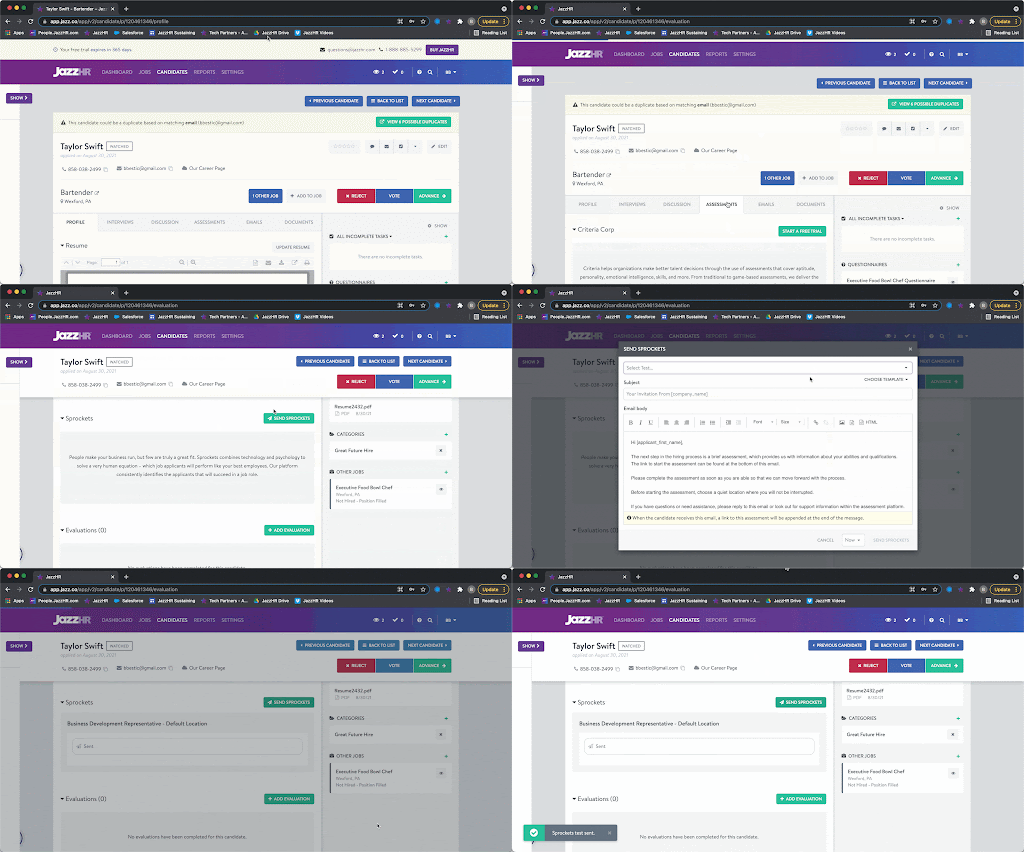
Once you have Sprockets connected with JazzHR, head to a candidate profile to start sending Sprockets assessments to candidates. From there:
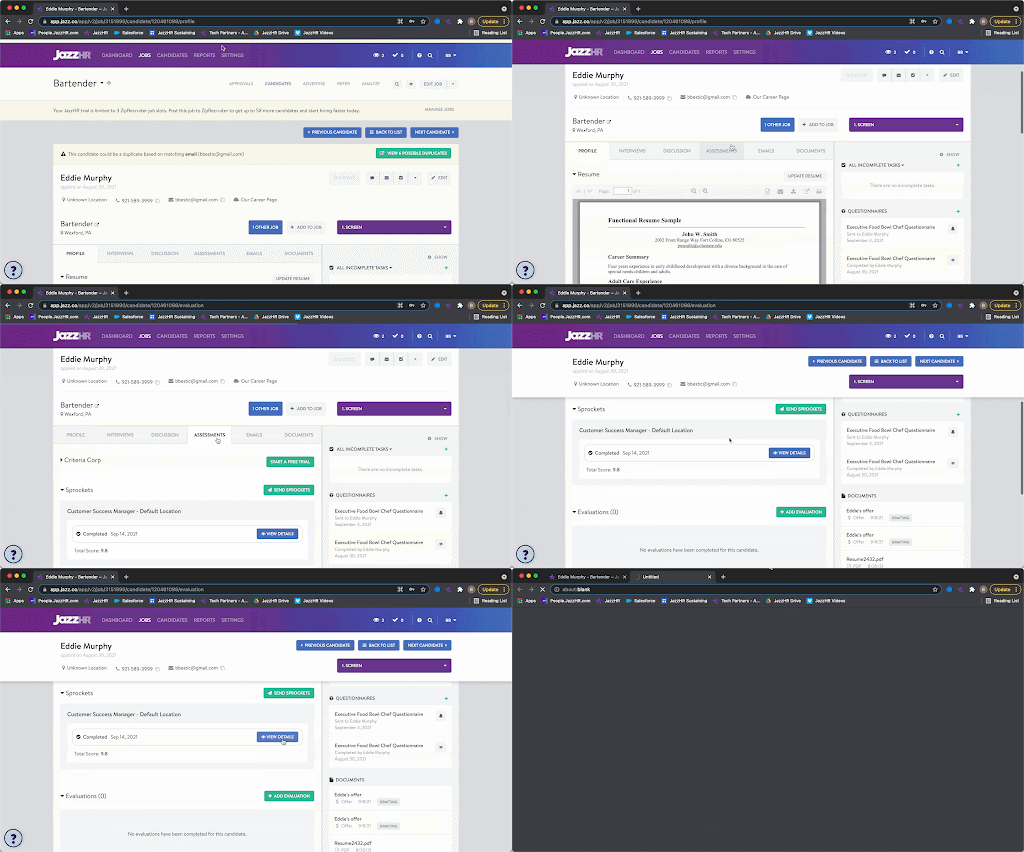
- Click the Assessments tab.
- Scroll down to the Sprockets section.
- Click Send Sprockets.
- Select a specific Sprockets test from the Select Test drop-down.
- Enter a subject line and email body. Note that the link to the assessment will be appended to the bottom of the message.
- Click Send Sprockets.
Add Sprockets Assessment as a Workflow Helper
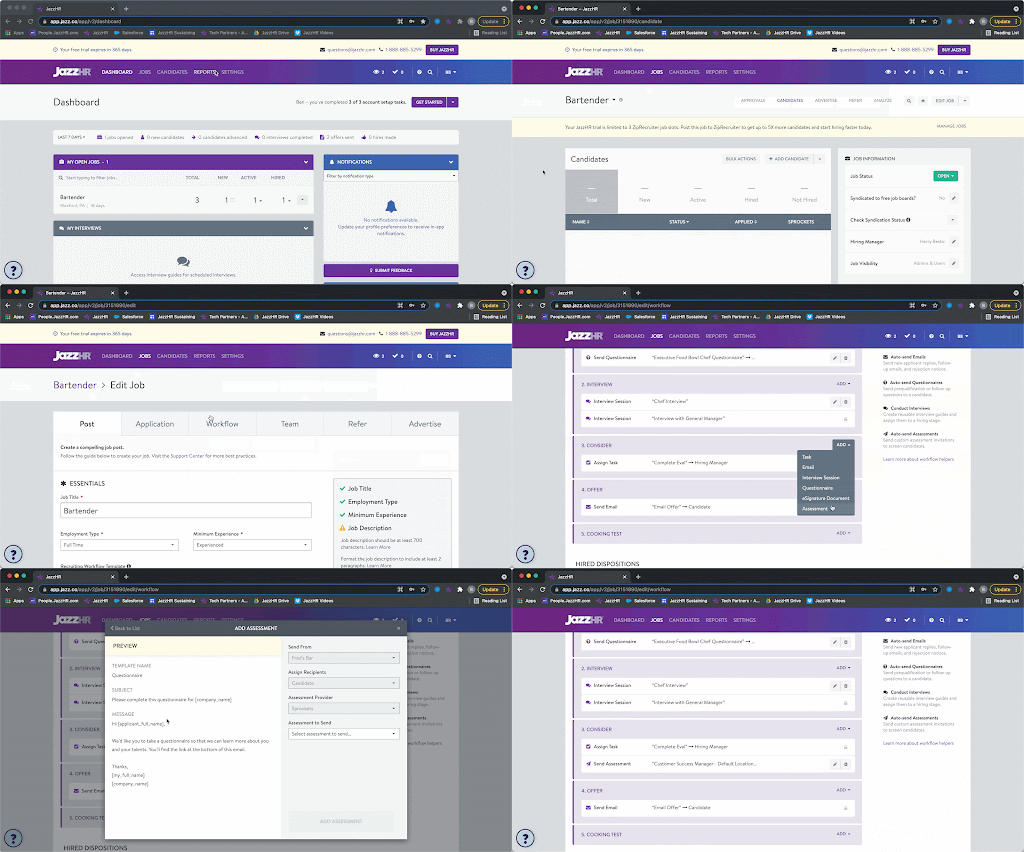
Add Sprockets into your job-specific Workflow to automate blind candidate screening. To add Sprockets as a Workflow Helper:
- Go to Jobs.
- Select the Job on which you want to send a Sprockets assessment.
- Click Edit Job.
- Click the Workflow tab.
- Find the stage on which you'd like the Sprockets assessment sent out.
- Click Add.
- Select the email template you'd like to be included with the Sprockets assessment.


Note: This must be done at the job level. You will not be able to add a Sprockets Workflow Helper on a Workflow Template. Assessment Workflow Helpers are job-specific because Sprockets assessments are linked on a job-by-job basis.
Once you add any candidate(s) into this stage, you'll be prompted to send the Sprockets assessment.
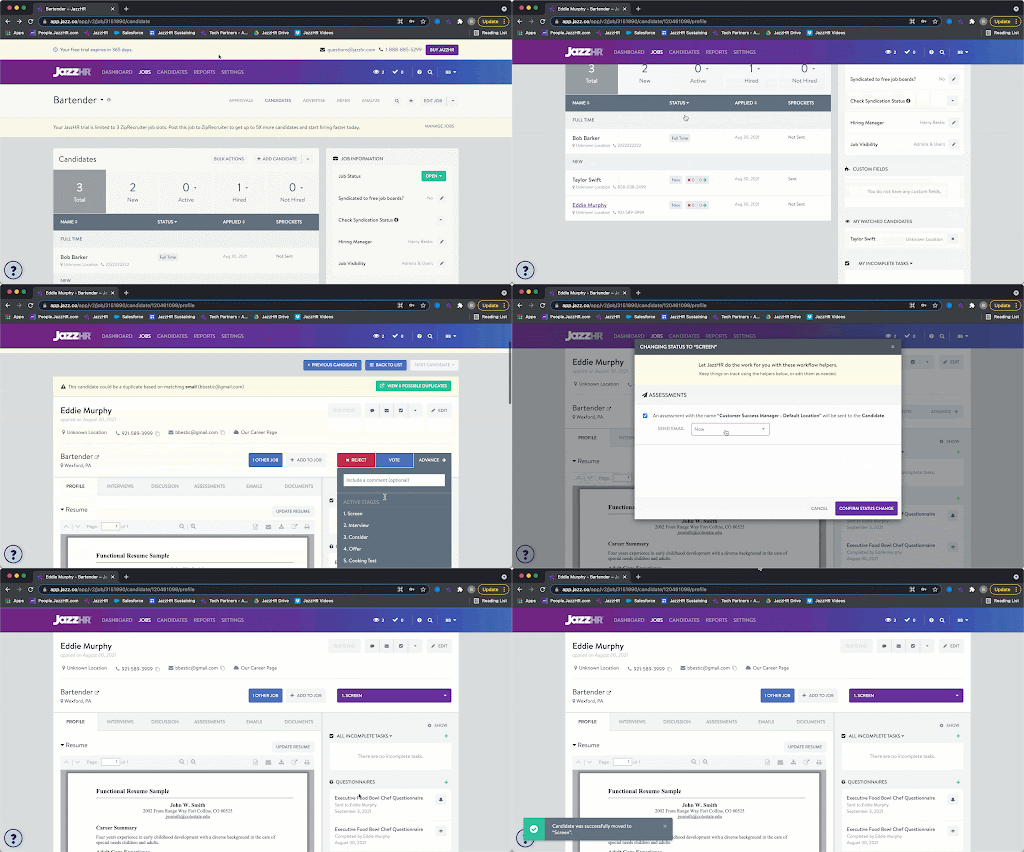
Candidates will receive invitations with a link to complete the assessment appended at the bottom.
View Sprockets Results
Once a candidate has completed the test, a summary of his/her results will be stored on the Assessments tab of the candidate profile.
Click View Details to view results.
Need help?
If you are unsure which link, source ID, or setup option to use, contact your Sprockets support team before updating live applicant workflows.