![Sprockets-Logo-Icon.png]](https://hiring.sprockets.ai/hs-fs/hubfs/Sprockets-Logo-Icon.png?height=40&name=Sprockets-Logo-Icon.png)
Send the Sprockets Survey to All Candidates at Once Through Indeed
What this article covers
- How Sprockets works with Indeed.
- Where to add or send the Sprockets survey link.
- How to confirm applicants can move through your hiring workflow.
Steps
Sending survey all candidates via bulk messaging through Indeed
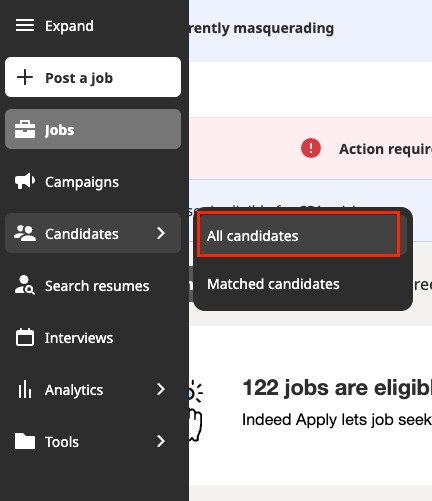
- Go to the Candidates tab on the left-hand side of your screen, selecting All Candidates.
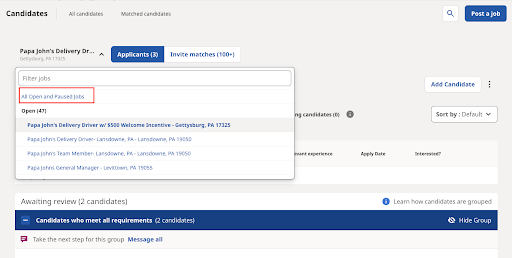
3. Scroll down to the candidates.
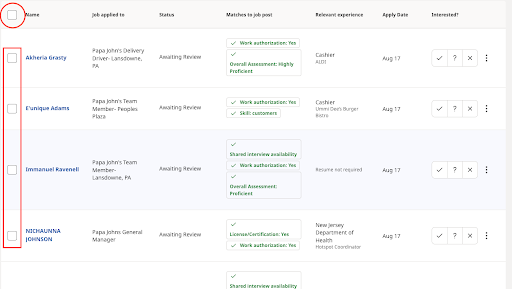
- The box that allows you to select ALL candidates is circled.
- The boxes that allow you to select individual candidates have a rectangle around them.
Please note that the date the candidates applied is to the right. Checking that date is the best way to ensure you are not messaging candidates multiple times if you are doing this daily.
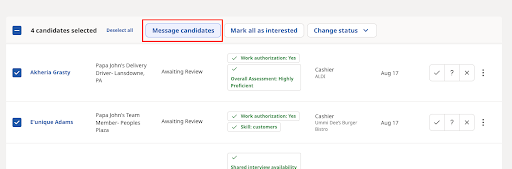
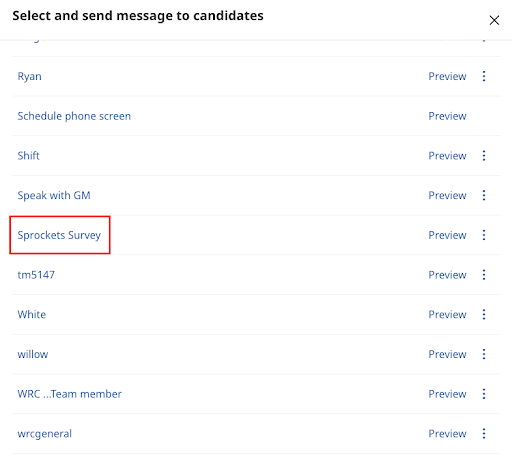
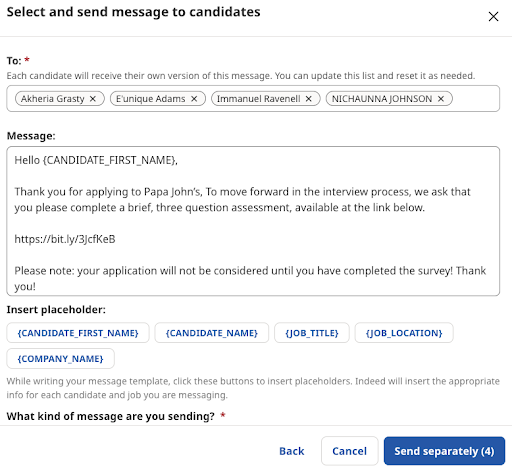
4. Once you have selected the candidates you would like to message, a Message Candidates button will appear above the candidates.
Need help?
If you are unsure which link, source ID, or setup option to use, contact your Sprockets support team before updating live applicant workflows.