![Sprockets-Logo-Icon.png]](https://hiring.sprockets.ai/hs-fs/hubfs/Sprockets-Logo-Icon.png?height=40&name=Sprockets-Logo-Icon.png)
Easily Get a Position’s Sprockets Survey into the Hands of New Applicants
What this article covers
- How Sprockets works with Harri.
- Where to add or send the Sprockets survey link.
- How to confirm applicants can move through your hiring workflow.
Steps
- Log in to Harri (Super Admin User).
- Click on Settings.
- Select Email Branding & Content.
- Select Email List.
Select Application Received.
Select Edit.
Give the template a title. We suggest “Sprockets [position] Survey.”
Fill in the message field. We suggest the following language:
“We have received your job application!
As part of the interview process, we ask that you please complete a brief, three-question survey. You can access the survey by clicking this link: [Insert Sprockets Link].
We really appreciate you taking the time to consider us in your job search. Please complete the survey, and we'll be reviewing the information you've provided us.
Thank you!”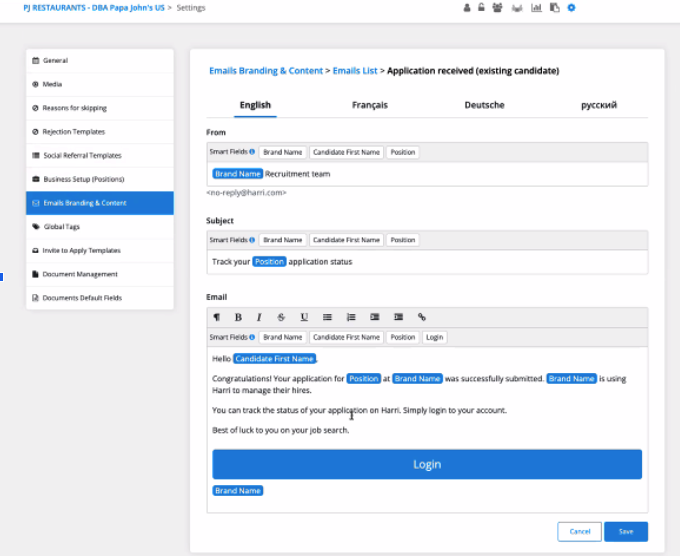
Note: We recommend you confirm with your Harri representative that the auto functionality is set up correctly.
Note: If you would like to retrieve past applicants for re-engagement campaigns, please reach out to Harri to request a custom report. You can easily upload it to the Sprockets platform.
Need help?
If you are unsure which link, source ID, or setup option to use, contact your Sprockets support team before updating live applicant workflows.