![Sprockets-Logo-Icon.png]](https://hiring.sprockets.ai/hs-fs/hubfs/Sprockets-Logo-Icon.png?height=40&name=Sprockets-Logo-Icon.png)
Learn How to Put Your Sprockets Survey in Hireology Email Templates
What this article covers
- How Sprockets works with Hireology.
- Where to add or send the Sprockets survey link.
- How to confirm applicants can move through your hiring workflow.
Steps
Candidate sourcing platforms like Hireology, TalentReef, and Indeed are great solutions for finding people, but Sprockets is built specifically to make sure you hire the right ones.
From our experience guiding our clients who utilize Hireology through their onboarding sessions, we've learned that putting the Sprockets survey link within an email or SMS template is the most effective way to implement Sprockets.
How to Create an Email Template in Hireology
- Log in to Hireology.


Click on Create New Email Template Button

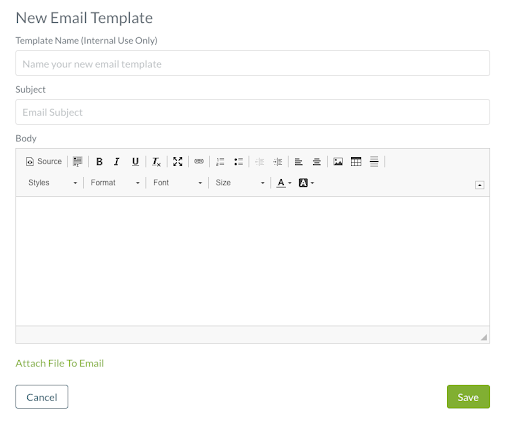


- Fill in the Message field. We suggest the following language:
“We have received your job application!
As part of the interview process, we ask that you please complete a brief, three-question survey. You can access the survey by clicking this link: [Insert Sprockets Link].
We really appreciate you taking the time to consider us in your job search. Please complete the survey, and we'll be reviewing the information you've provided us.
Thank you!” 
How to Create an SMS Template in Hireology
- Log in to Hireology.
Press the green Create New button.
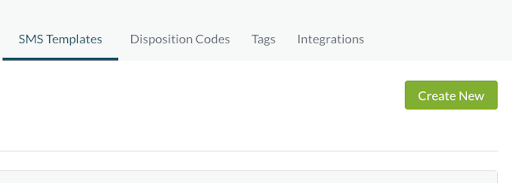
Fill in the message field. We suggest the following language:
“We have received your job application!
As part of the interview process, we ask that you please complete a brief, three-question survey. You can access the survey by clicking this link: [Insert Sprockets Link].
We really appreciate you taking the time to consider us in your job search. Please complete the survey, and we'll be reviewing the information you've provided us.
Thank you!”
How to Deliver a Sprockets Email/SMS Template Within Hireology
Your Hireology account should now be set-up with a message template named "Sprockets [position] Survey" that you can send to applicants as they apply to your open position(s).
We find that applicants are far more likely to complete the survey if we send it via two avenues, so we recommend using both the email and SMS template together within Hireology.
Follow the steps outlined below for instructions on how to deliver those:
- Log in to Hireology.
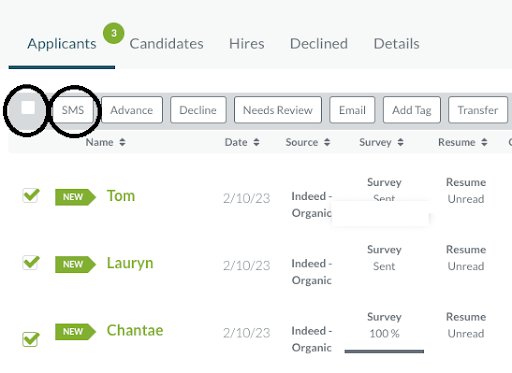
Use the checkboxes on the left-hand side to select one or more applicants.
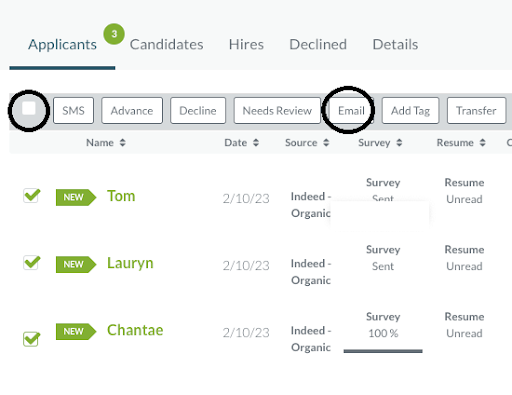
- Send applicant(s) a message
Email - Press Email on the gray bar to contact the candidate. Press the downward arrow on the Template line to open the dropdown menu and select "Sprockets [position] Survey." Press send to deliver the email.
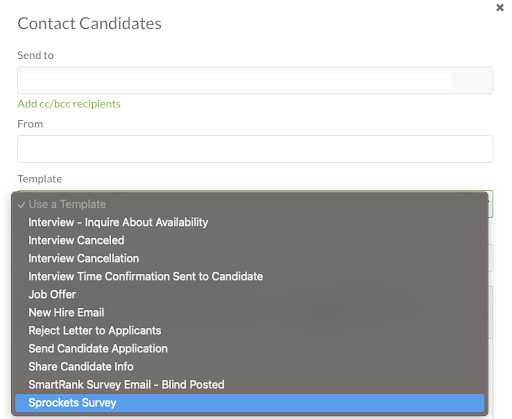
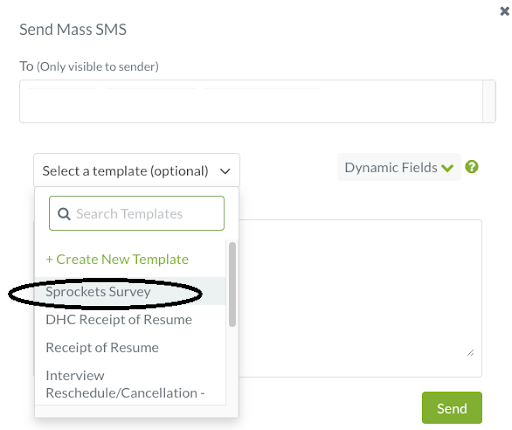
SMS - Press SMS on the gray bar to create a conversation. Click Select a template to open the dropdown menu and select "Sprockets [position] Survey." Press send to deliver the message.
NOTE: Re-send the survey to applicants who have not yet completed it.
After not seeing a survey response from an applicant after a day or two, use the Mass-Select tool in Hireology to re-send the Sprockets survey to those people via email and SMS. This should serve as a double-reminder that we need a response in order to move forward in the interview process.
Need help?
If you are unsure which link, source ID, or setup option to use, contact your Sprockets support team before updating live applicant workflows.