![Sprockets-Logo-Icon.png]](https://hiring.sprockets.ai/hs-fs/hubfs/Sprockets-Logo-Icon.png?height=40&name=Sprockets-Logo-Icon.png)
Gmail Makes It Easy to Quickly Send Applicants Your Sprockets Survey, With Just a Couple of Clicks
What this article covers
- How Sprockets works with Gmail.
- Where to add or send the Sprockets survey link.
- How to confirm applicants can move through your hiring workflow.
Steps
Using Gmail as your main point-of-contact for applicants? Follow the steps below to build a Gmail template that will allow you to repeatedly send your Sprockets survey to new applicants, without ever having to type a message.
Enable Gmail Templates
- Log in to Gmail.
- At the top right, click the gear icon.
- Click See all settings.
- At the top, click Advanced.
- In the Templates section, select Enable.
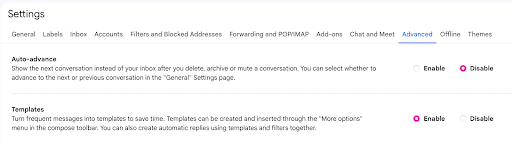
- At the bottom, click Save Changes.
Creating A Gmail Template
- Open Gmail and click Compose. The New Message window will open.
- In the Compose window, enter the following template text:
“We have received your job application!
As part of the interview process, we ask that you please complete a brief, three-question survey. You can access the survey by clicking this link: [Insert Sprockets Link].
We really appreciate you taking the time to consider us in your job search. Please complete the survey, and we'll be reviewing the information you've provided us.
Thank you!”
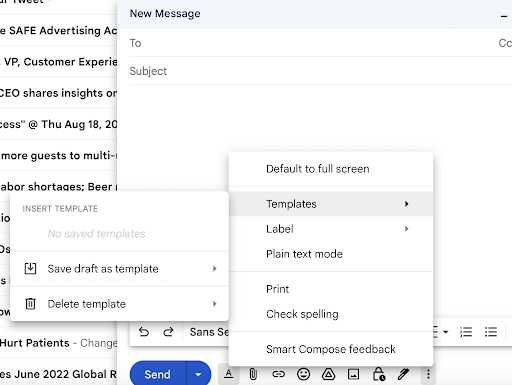
- Click on the three dots on the bottom-right corner of the compose window.
- Hover the option Template.
- Click Save draft as template.
Name your template "Sprockets Survey” and press Save.
Sending A Gmail Template
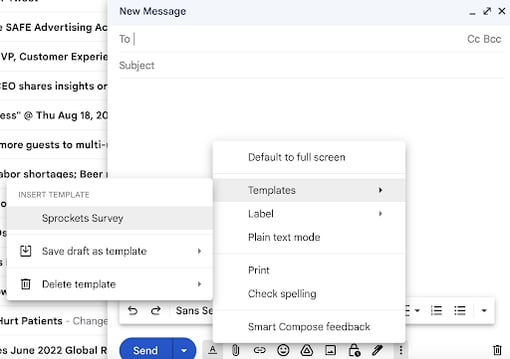
- Compose a new message.
- Click Templates.
- Select "Sprockets Survey."
- Compose the rest of your message and click Send.
Need help?
If you are unsure which link, source ID, or setup option to use, contact your Sprockets support team before updating live applicant workflows.