![Sprockets-Logo-Icon.png]](https://hiring.sprockets.ai/hs-fs/hubfs/Sprockets-Logo-Icon.png?height=40&name=Sprockets-Logo-Icon.png)
Learn How to Automatically Send Candidates the Sprockets Survey
What this article covers
- How Sprockets works with HigherMe.
- Where to add or send the Sprockets survey link.
- How to confirm applicants can move through your hiring workflow.
Steps
- Log in to HigherMe.
Select Admin in the upper right corner.
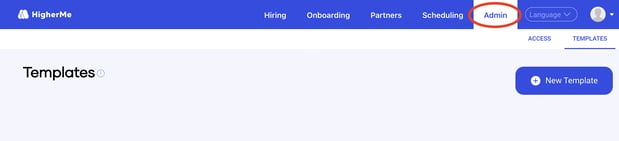
Select Templates.


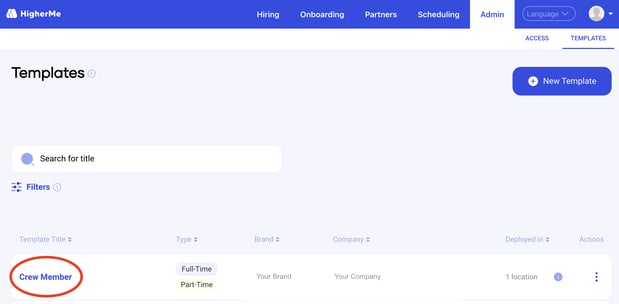

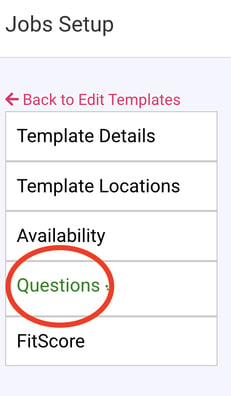

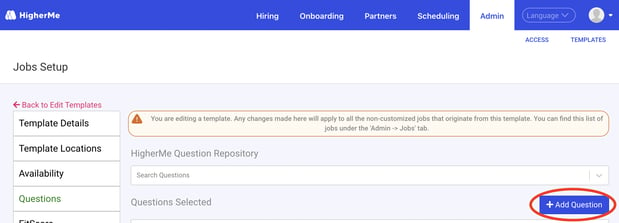

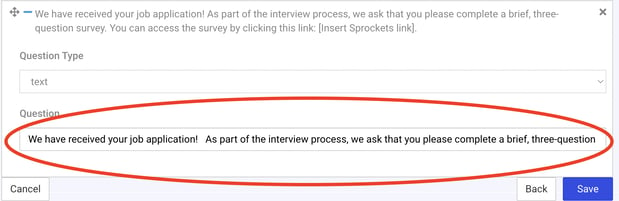

“We have received your job application!
As part of the interview process, we ask that you please complete a brief, three-question survey. You can access the survey by clicking this link: [Insert Sprockets link].
We really appreciate you taking the time to consider us in your job search. Please complete the survey, and we'll be reviewing the information you've provided us.Thank you!”

Need help?
If you are unsure which link, source ID, or setup option to use, contact your Sprockets support team before updating live applicant workflows.