![Sprockets-Logo-Icon.png]](https://hiring.sprockets.ai/hs-fs/hubfs/Sprockets-Logo-Icon.png?height=40&name=Sprockets-Logo-Icon.png)
You Can Easily Integrate Sprockets With Your Paradox Account
What this article covers
- How Sprockets works with Paradox.
- Where to add or send the Sprockets survey link.
- How to confirm applicants can move through your hiring workflow.
Steps
With Paradox, you can integrate Olivia's line of questioning so that she will automatically send your Sprockets survey out to your applicants while they are applying!
Simply contact Info@Sprockets.ai or your Customer Success Manager!
Sprockets will set-up the integration with Paradox on your behalf.
Olivia Will Now Ask Applicants to Take the Sprockets Survey
Applicants who go through the preliminary questions like, "Can you please provide your first and last name?" and "Can you please provide me with your mobile phone number?" will also receive the Sprockets survey.
How to easily export your applicant data from Paradox (McHire)
Upon logging into your account, you will first need to select the Menu and then click on Settings.
- How to easily export your applicant data from Paradox (McHire) . Upon logging into your account, you will first need to select the Menu and then click on Settings.
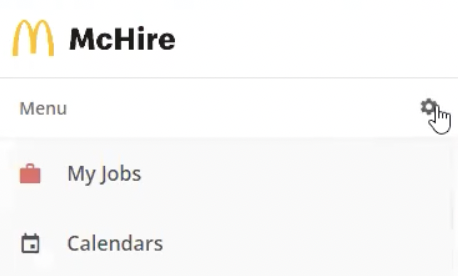
Following that, click on Analytics & Reporting. Once the new page has loaded, you will need to click New Report in the top-right corner of your screen.

Once you have clicked New Report, you will start at Configuration. For Category you will need to select Capture, for Report select Candidate Specific, for Frequency select One-time. Following this, click Next in the top right corner.

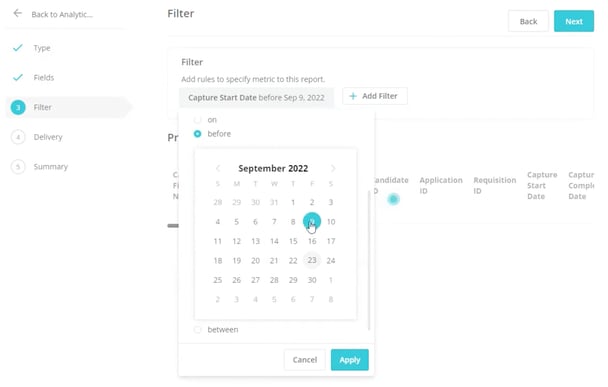
After clicking next you will be in Filter. Here, click on Capture Start Date = Before {Today's Date} and click Apply. Once you have done this, wait until five names load into the page. Then, in the top right corner, click Next again.
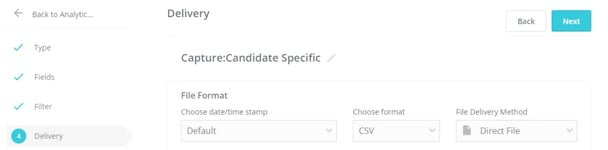
When clicking next after you have set your Filter, you should not have to change anything for Delivery. What you should see should reflect the image below. Simply click Next.
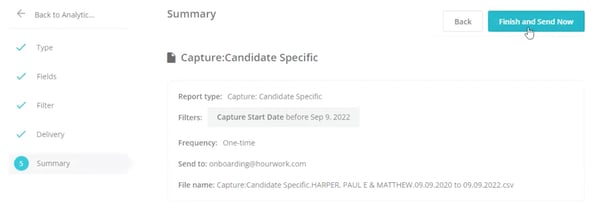
This will bring you to the final section - Summary. You should not have to do anything here either. Simply click Finish and Send Now.

Need help?
If you are unsure which link, source ID, or setup option to use, contact your Sprockets support team before updating live applicant workflows.