![Sprockets-Logo-Icon.png]](https://hiring.sprockets.ai/hs-fs/hubfs/Sprockets-Logo-Icon.png?height=40&name=Sprockets-Logo-Icon.png)
Automatically Send Candidates the Sprockets Pre-Interview and Retrieve Past Applicants for Re-Engagement Campaigns.
What this article covers
- How Sprockets works with Snagajob.
- Where to add or send the Sprockets survey link.
- How to confirm applicants can move through your hiring workflow.
Step 1: Log in to Your Sprockets Account
Step 2: Select Jobs on Your Sprockets Dashboard
- Once you're logged in, you will be directed to your Sprockets dashboard. Here, you can view a list of your job listings.
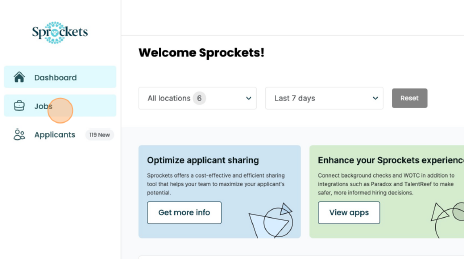
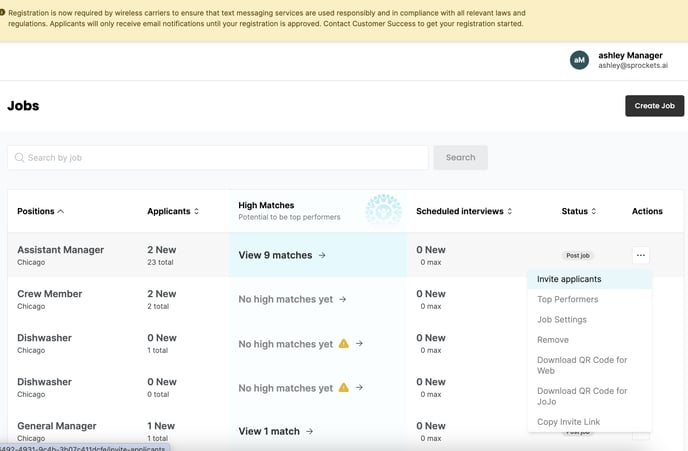
Step 3: Find the Job and Click on the 3 Dots Under Actions
Step 4: Select "Invite applicant" from the Dropdown Menu
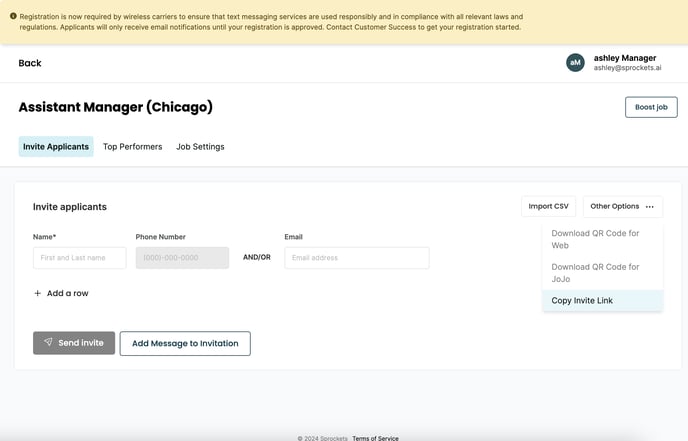
Step 5: Click on the "Copy Invite Link" Button in the Right Hand Side of the Page
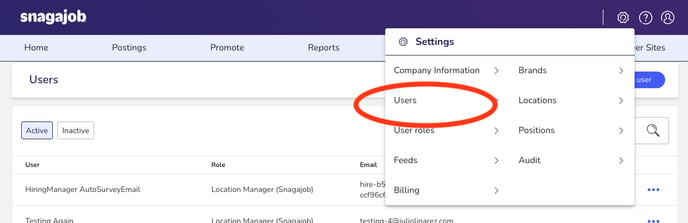
Step 6: Log in to Snagajob. Select Settings on the top navigation bar, then select Users.
Step 6: Select Create user.
Step 7: Paste link to Add the "Sprockets Pre-Interview" Send.
Add "Sprockets" and "Survey" in the First Name and Last Name boxes. Paste the email address you copied from Sprockets in the Email Address box.
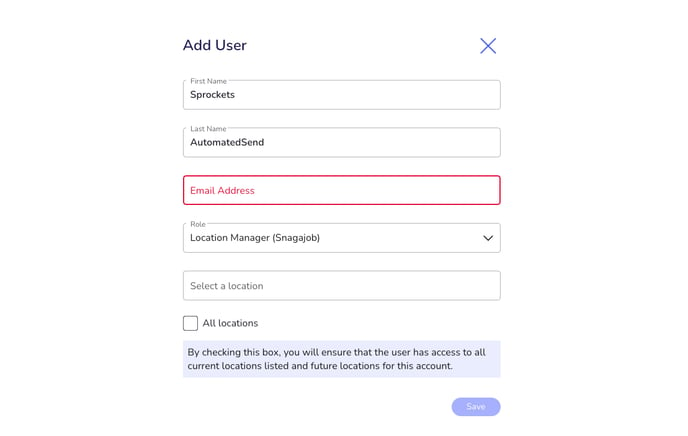
Step 7: Select the role Location Manager and the specific location you'd like to automatically send the Sprockets survey.
This way, any job you create within this location will already be set-up.
Note: Select All Locations if.....
To Retrieve Past Applicants for
- Log in to Snagajob.
- Select Applicants in top navigation bar.
- Select Download your applicant records.
- Retrieve the csv file.
- Proceed with the re-engagement process: How to Re-Engage Past Applicants.
Need help?
If you are unsure which link, source ID, or setup option to use, contact your Sprockets support team before updating live applicant workflows.