![Sprockets-Logo-Icon.png]](https://hiring.sprockets.ai/hs-fs/hubfs/Sprockets-Logo-Icon.png?height=40&name=Sprockets-Logo-Icon.png)
Automatically Send Candidates the Sprockets Pre-Interview and Retrieve Past Applicants for Re-Engagement Campaigns.
What this article covers
- How Sprockets works with Snagajob.
- Where to add or send the Sprockets survey link.
- How to confirm applicants can move through your hiring workflow.
Steps
Integrations · ATS & Job BoardsHow to Use Sprockets With Snagajob
Automatically Send Candidates the Sprockets Pre-Interview and Retrieve Past Applicants for Re-Engagement Campaigns.
Step 1: Log in to Your Sprockets Account
Step 2: Select Jobs on Your Sprockets Dashboard
- Once you're logged in, you will be directed to your Sprockets dashboard. Here, you can view a list of your job listings.
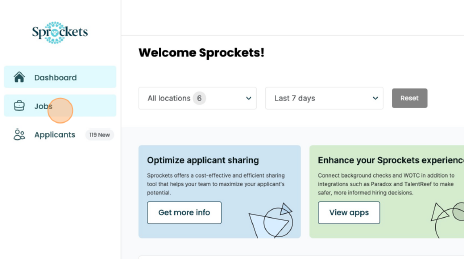
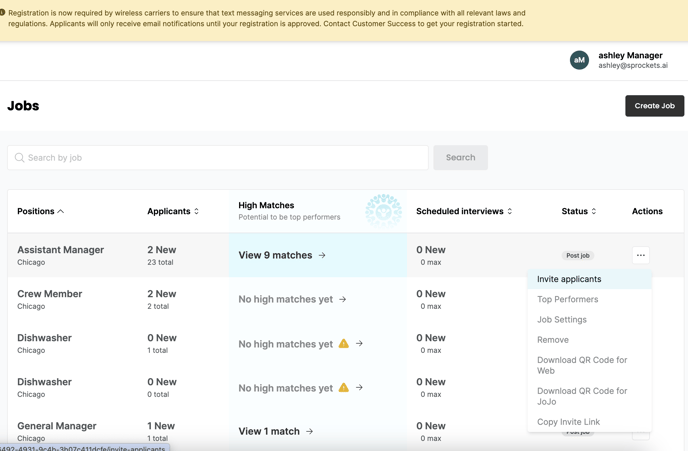
Step 3: Find the Job and Click on the 3 Dots Under Actions
Step 4: Select "Invite applicant" from the Dropdown Menu
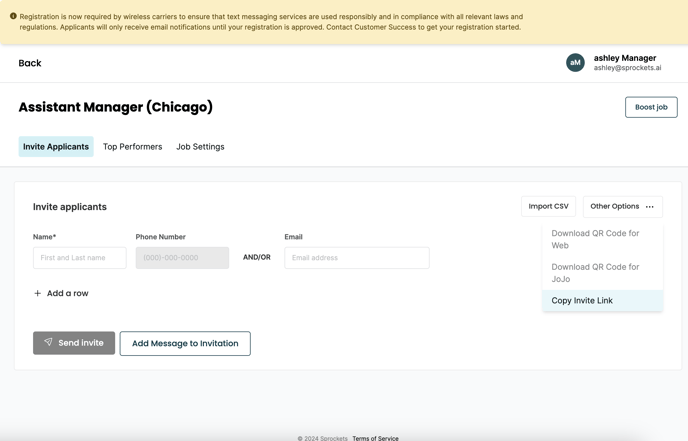
Step 5: Click on the "Copy Invite Link" Button in the Right Hand Side of the Page
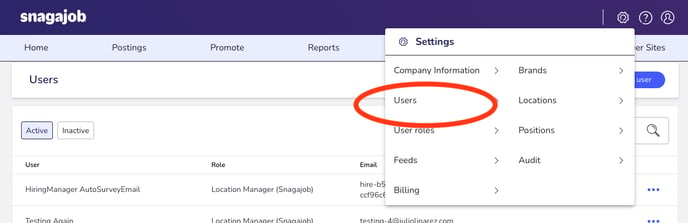
Step 6: Log in to Snagajob. Select Settings on the top navigation bar, then select Users.
Step 6: Select Create user.
Step 7: Paste link to Add the "Sprockets Pre-Interview" Send.
Add "Sprockets" and "Survey" in the First Name and Last Name boxes. Paste the email address you copied from Sprockets in the Email Address box.
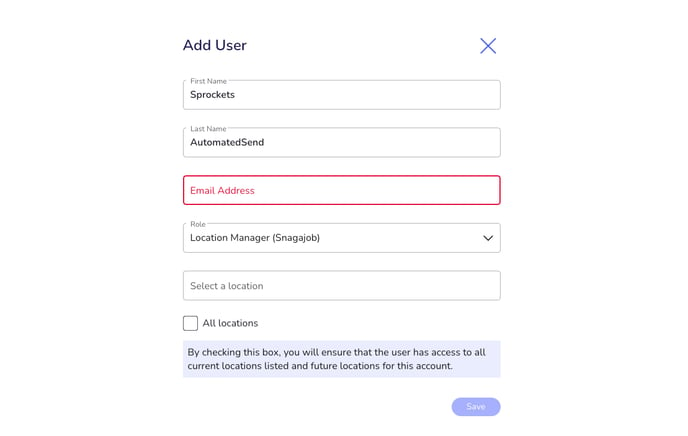
Step 7: Select the role Location Manager and the specific location you'd like to automatically send the Sprockets survey.
This way, any job you create within this location will already be set-up.
Note: Select All Locations if...
To Retrieve Past Applicants for
Need help?
If you are unsure which link, source ID, or setup option to use, contact your Sprockets support team before updating live applicant workflows.