![Sprockets-Logo-Icon.png]](https://hiring.sprockets.ai/hs-fs/hubfs/Sprockets-Logo-Icon.png?height=40&name=Sprockets-Logo-Icon.png)
Reset Your Password in Sprockets
Reset Your Sprockets Password
Forgot your password? Follow these steps to request a reset email and create a new password for your Sprockets account.
Make sure you can access your inbox
You'll need access to the email inbox connected to your Sprockets account. The password reset link will be sent there.
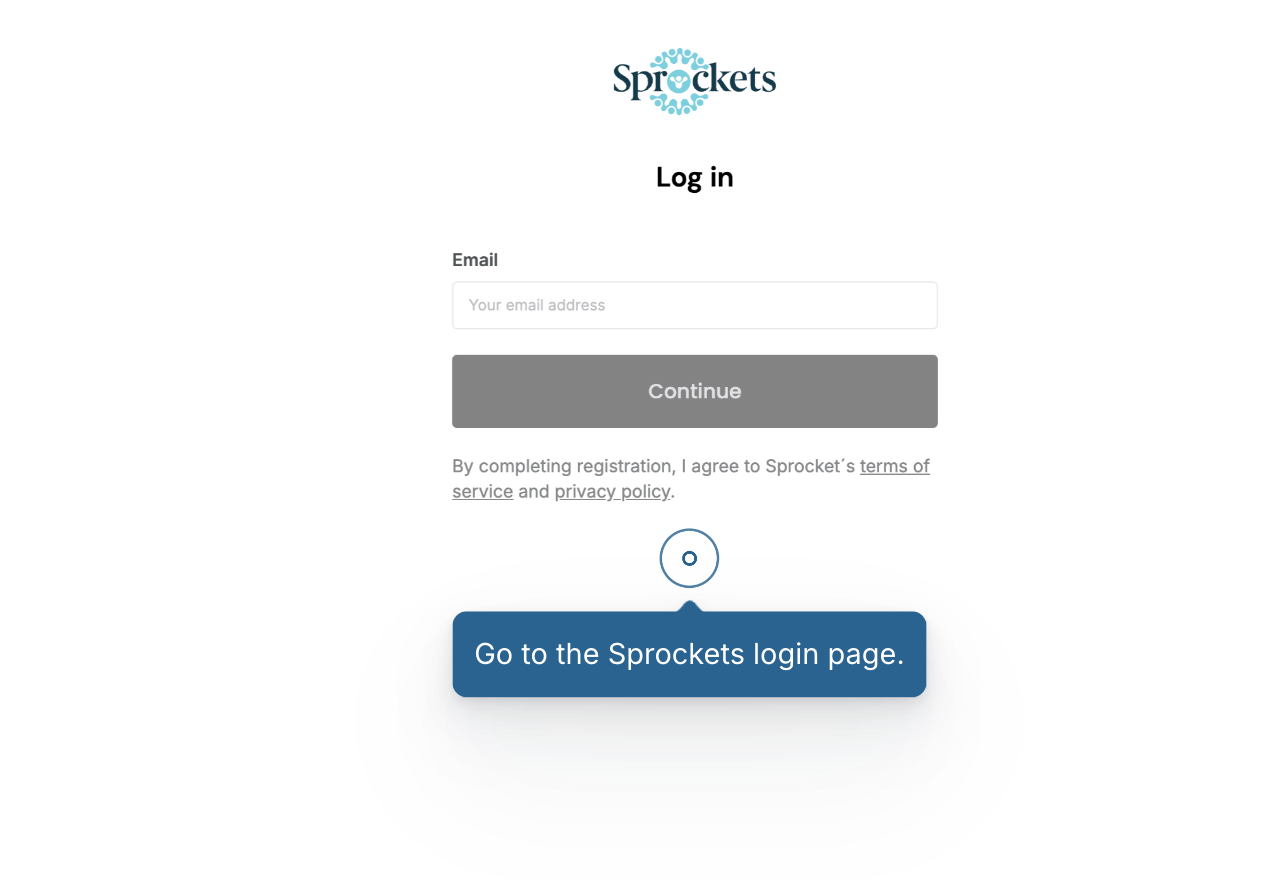
Go to the Sprockets login page
Open the Sprockets login page.
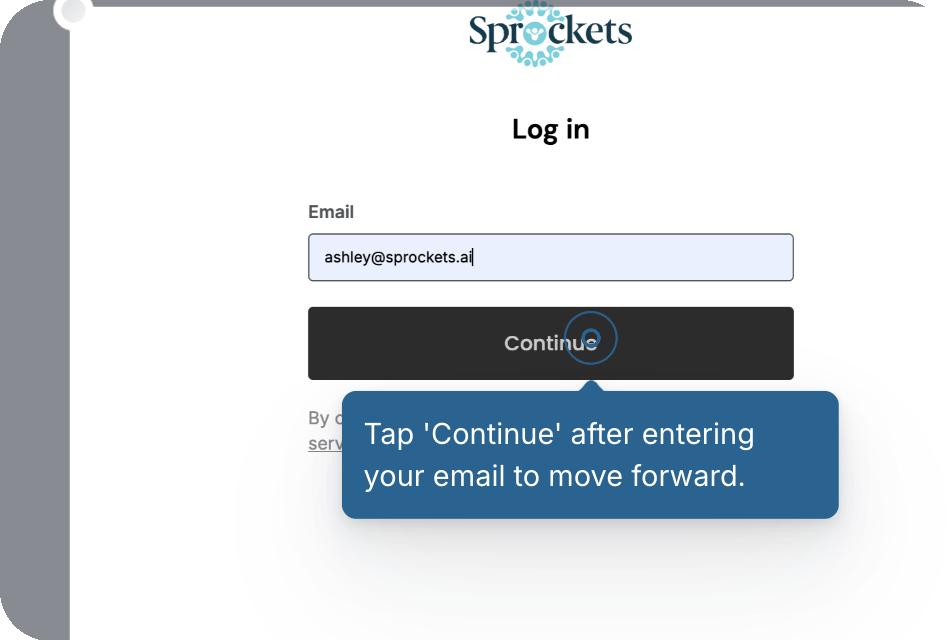
Enter your email address
Click into the Email field, type the email address associated with your Sprockets account, then click Continue.
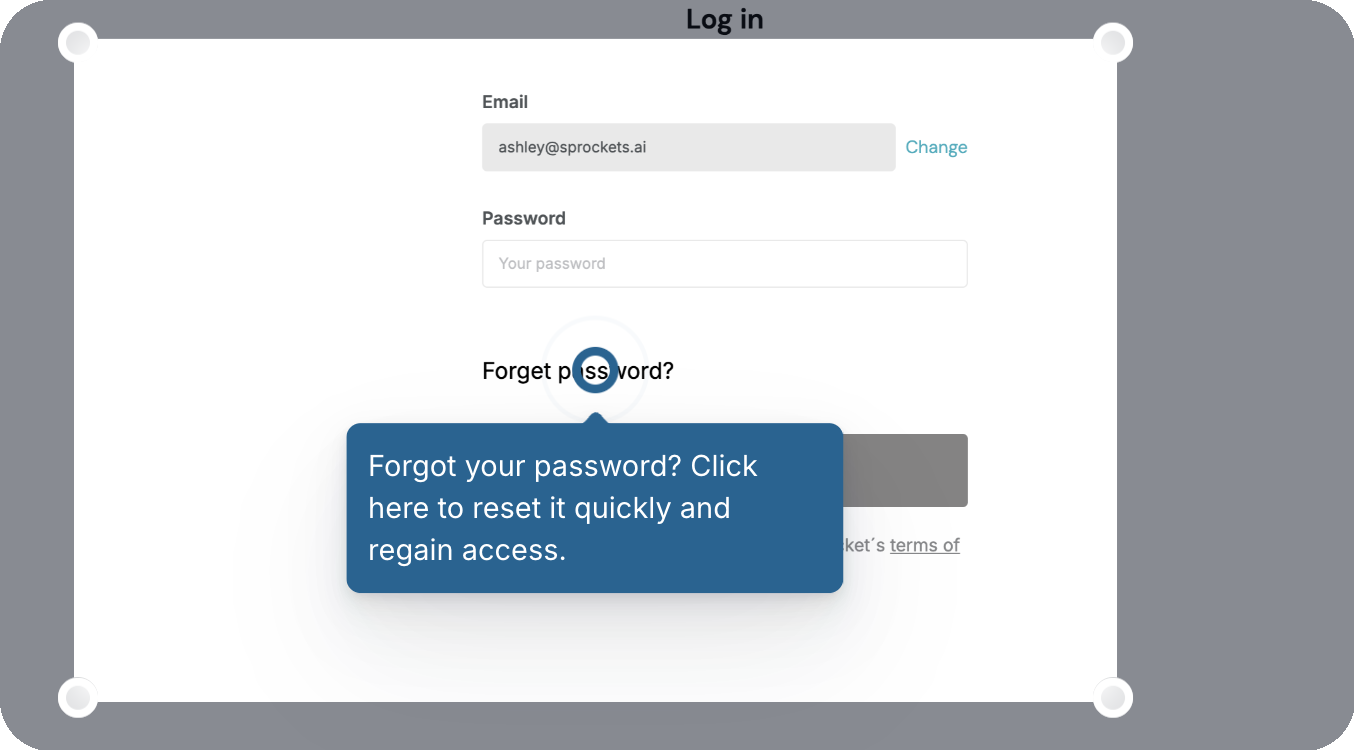
Click Forgot password?
On the password screen, click Forgot password? to start the reset process.
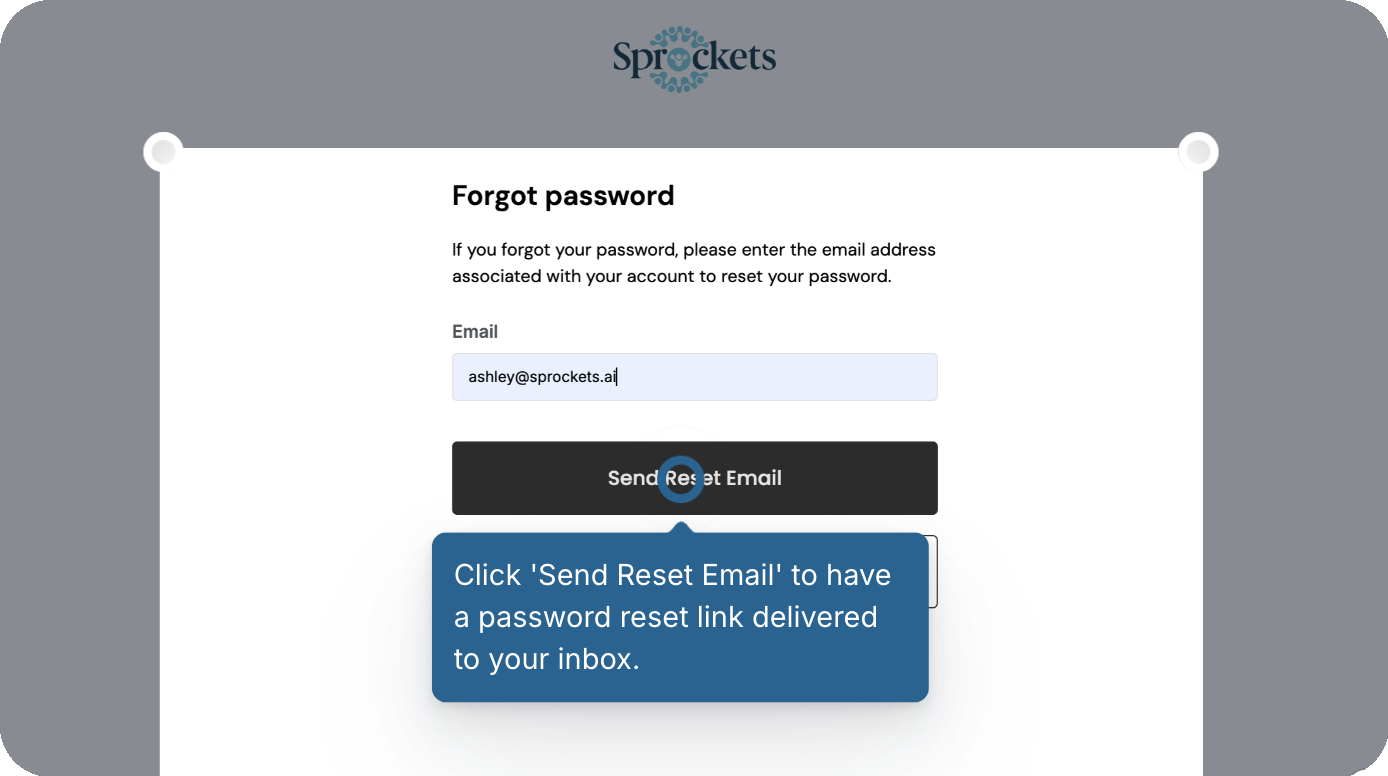
Send the reset email
On the Forgot password page, enter your email address and click Send Reset Email.
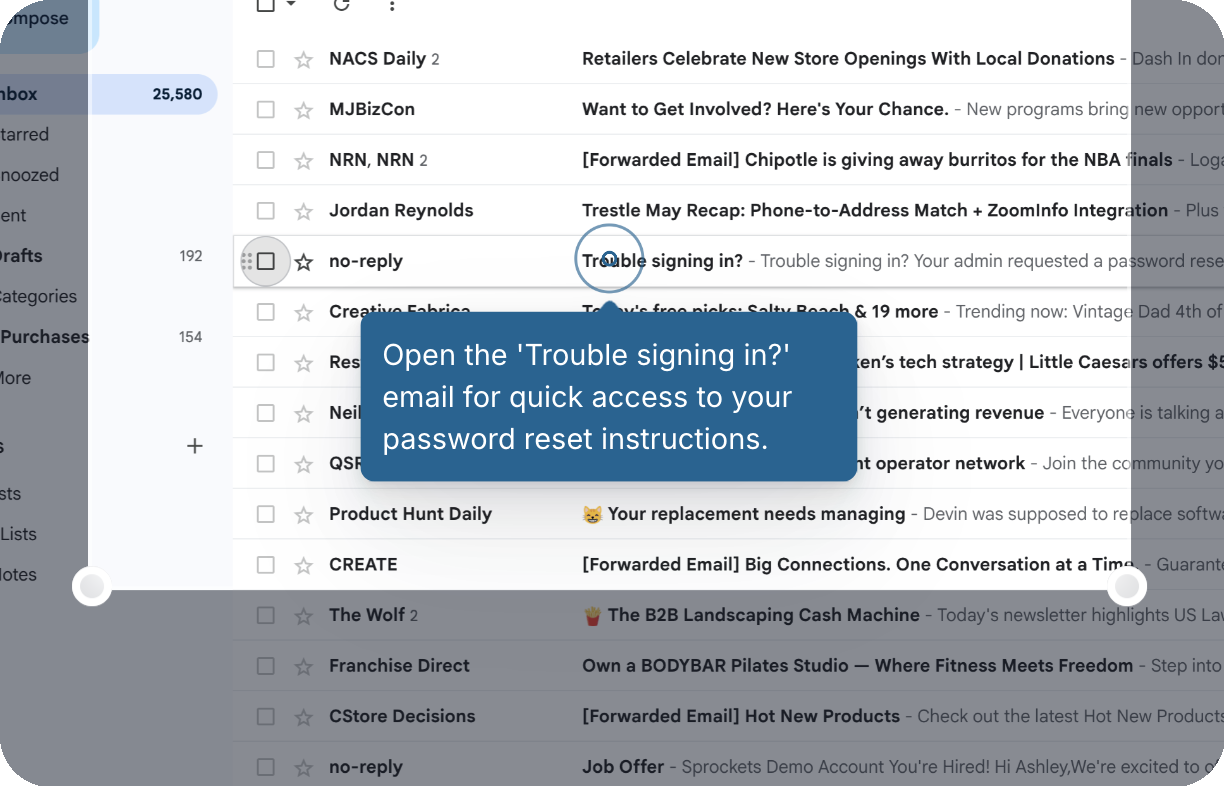
Open the Trouble signing in? email
Go to your inbox and open the email from Sprockets with the subject line Trouble signing in?
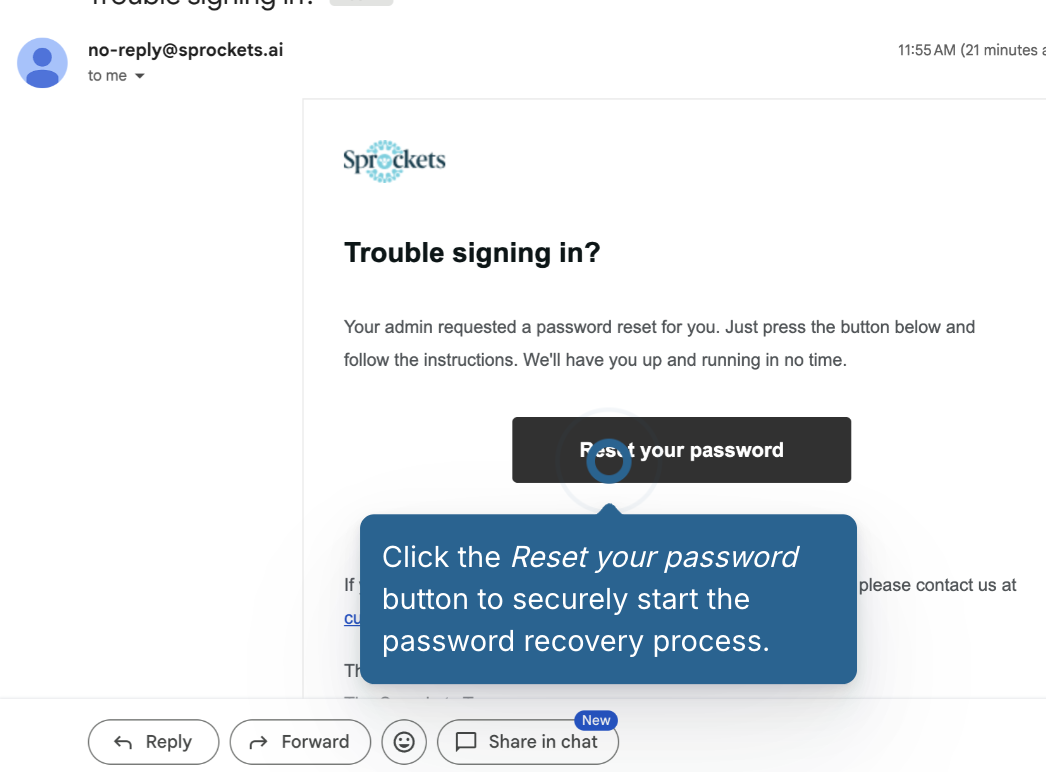
Click Reset your password
In the email, click Reset your password to securely open the password reset page.
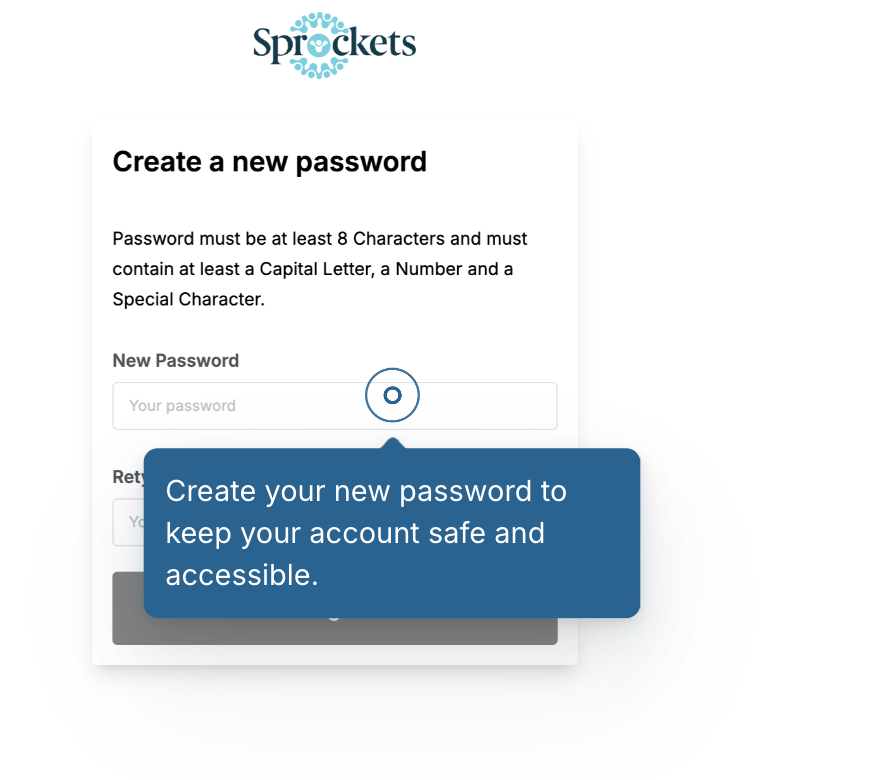
Create your new password
Enter your new password, then retype it to confirm.
Password requirements:
- At least 8 characters
- At least one capital letter
- At least one number
- At least one special character
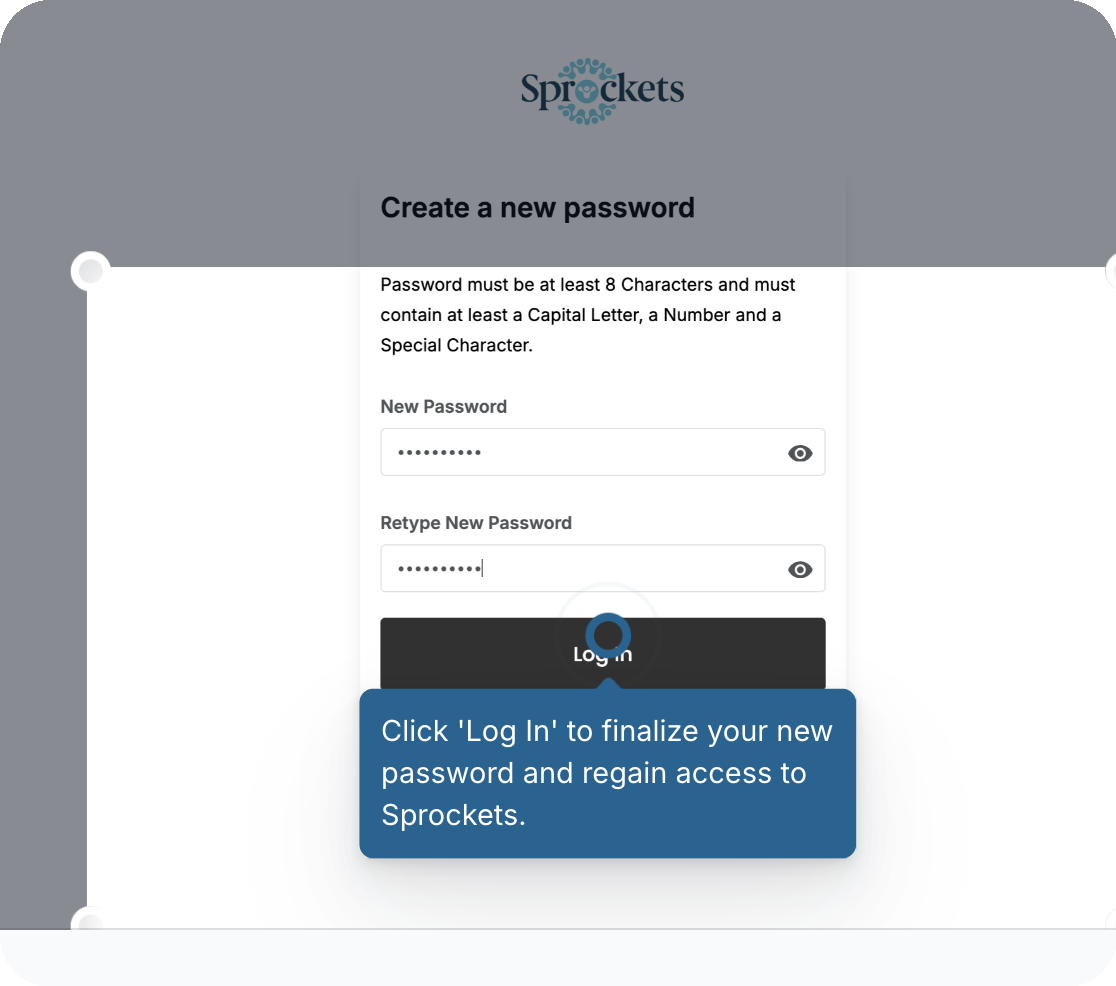
Log in with your new password
Click Log In to finalize your new password and regain access to Sprockets.
What to check before you move on
You used the email address connected to your Sprockets account.
You opened the password reset email from Sprockets.
Your new password meets all password requirements.
Troubleshooting
I don't see the reset email.
Check your spam or junk folder. You should also confirm that you entered the same email address connected to your Sprockets account.
The reset link expired or does not work.
Return to the login page and repeat the steps above to send yourself a new password reset email.