![Sprockets-Logo-Icon.png]](https://hiring.sprockets.ai/hs-fs/hubfs/Sprockets-Logo-Icon.png?height=40&name=Sprockets-Logo-Icon.png)
Approve Outlook Access for Sprockets
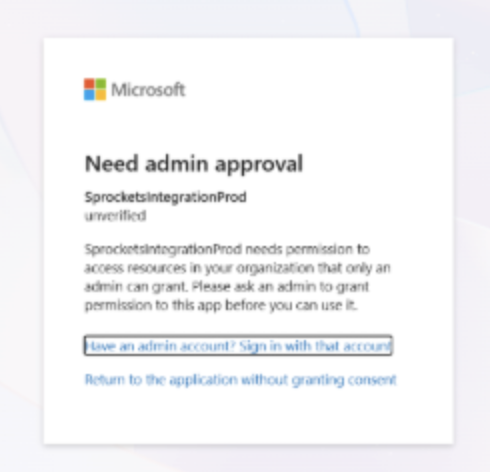
If a user sees a Microsoft Need admin approval message while connecting Outlook to Sprockets, Microsoft requires approval before Sprockets can access calendar permissions for that organization.
Choose the right approval path
There are two ways to move forward. The best path depends on how your organization manages Microsoft permissions.
Path 1: Admin grants access directly — A Microsoft admin logs in to Sprockets, connects Outlook calendar access, and grants the requested permission. After that, the admin can disconnect their calendar, and the user can connect their own Outlook calendar.
Path 2: User requests admin approval — The user can submit a request to their Microsoft admin. For this to work, admin consent requests must be enabled in Microsoft Entra ID, and at least one reviewer must be selected.
Note: Microsoft settings can vary by organization. If the user cannot submit an admin request, ask a Microsoft admin to use Path 1 or confirm that admin consent requests are enabled.
Microsoft admin approval message
Users may see a message that says Need admin approval for SprocketsIntegrationProd. This means the app needs permission that only a Microsoft admin can grant or review.
Path 1: Have an admin approve access directly
This is usually the fastest option when a Microsoft admin is available.
- 1Ask a Microsoft admin at your organization to log in to Sprockets.
- 2Have the admin connect Outlook calendar access in Sprockets and grant the Microsoft permission request.
- 3Once permission has been granted for the organization, the admin can disconnect their calendar.
- 4The original user can return to Sprockets and connect their Outlook calendar.
Open the Microsoft admin center
Log in to the Microsoft admin center with an account that has permission to manage your organization's identity and consent settings.
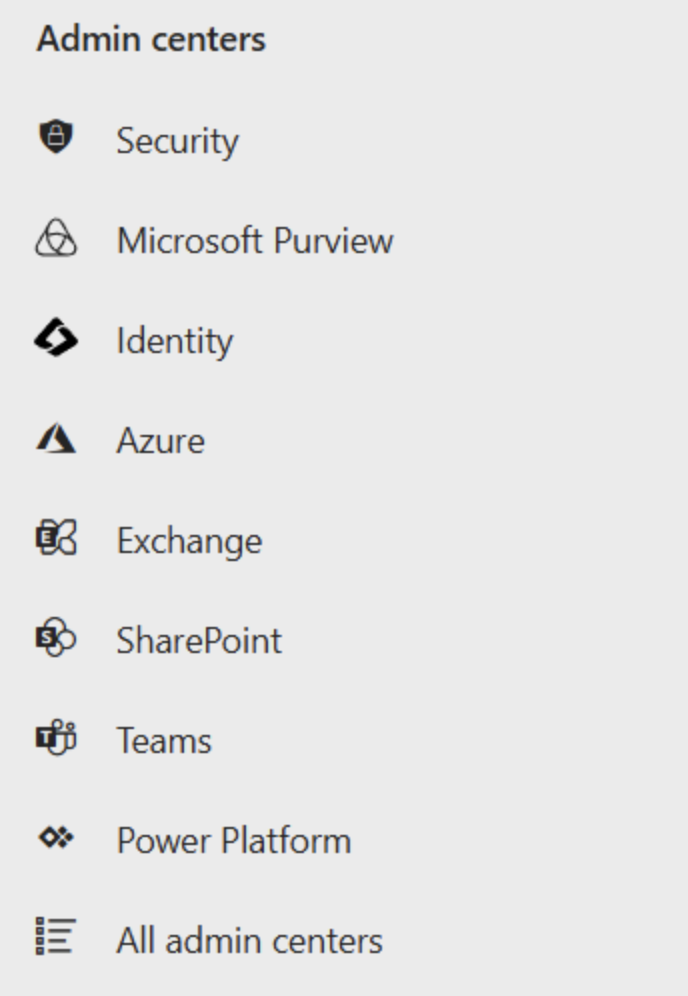
Open Identity
From the Admin centers menu, select Identity. This opens Microsoft Entra ID.
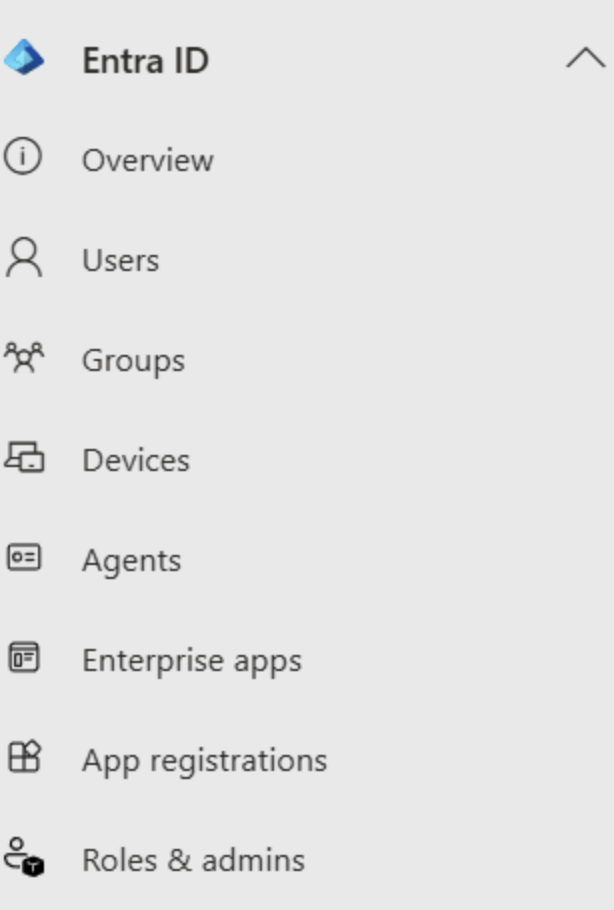
Go to Enterprise apps
In Microsoft Entra ID, select Enterprise apps from the left navigation.
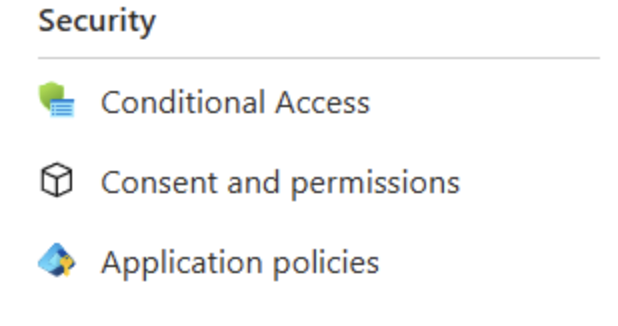
Open Consent and permissions
Under Security, select Consent and permissions, then open Admin consent settings.
Turn on admin consent requests
Under Admin consent requests, set Users can request admin consent to apps they are unable to consent to to Yes.
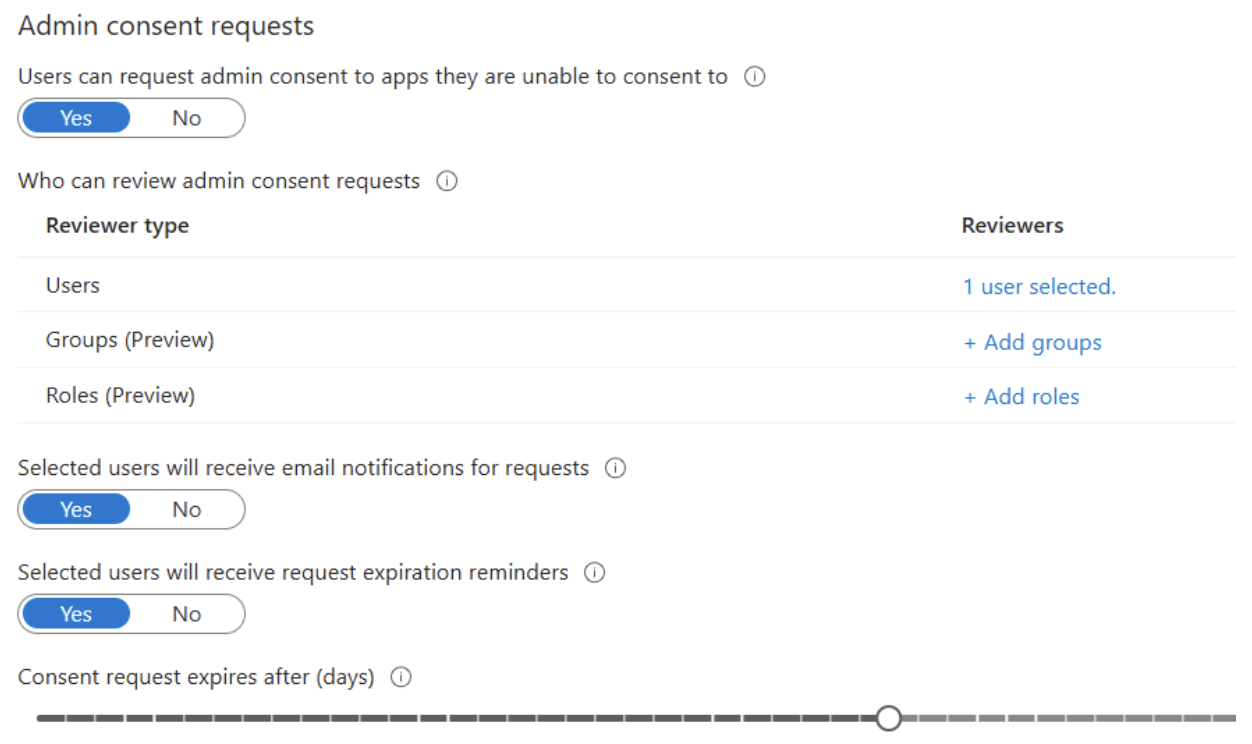
Important: At least one reviewer must be defined before users can submit admin consent requests.
Add a reviewer and save
Add at least one user, group, or role that can review admin consent requests. Confirm the notification and reminder settings, then save your changes.
What to check before you move on
- ✓If using Path 1, a Microsoft admin has granted Outlook access for Sprockets.
- ✓If using Path 2, admin consent requests are set to Yes.
- ✓At least one reviewer is selected for admin consent requests.
- ✓The user has returned to Sprockets and tried connecting Outlook again.
Tip: Turning on admin consent requests does not automatically approve the app. It allows users to submit the request so a selected reviewer can approve it.