![Sprockets-Logo-Icon.png]](https://hiring.sprockets.ai/hs-fs/hubfs/Sprockets-Logo-Icon.png?height=40&name=Sprockets-Logo-Icon.png)
Before you start
Before you start
Make sure you are logged in to Sprockets and have the correct access for the location, job, or candidate you need to manage.
Steps
1
Open the Candidates tab
Open the Candidates tab.
2
Find the candidate
Find the candidate.
3
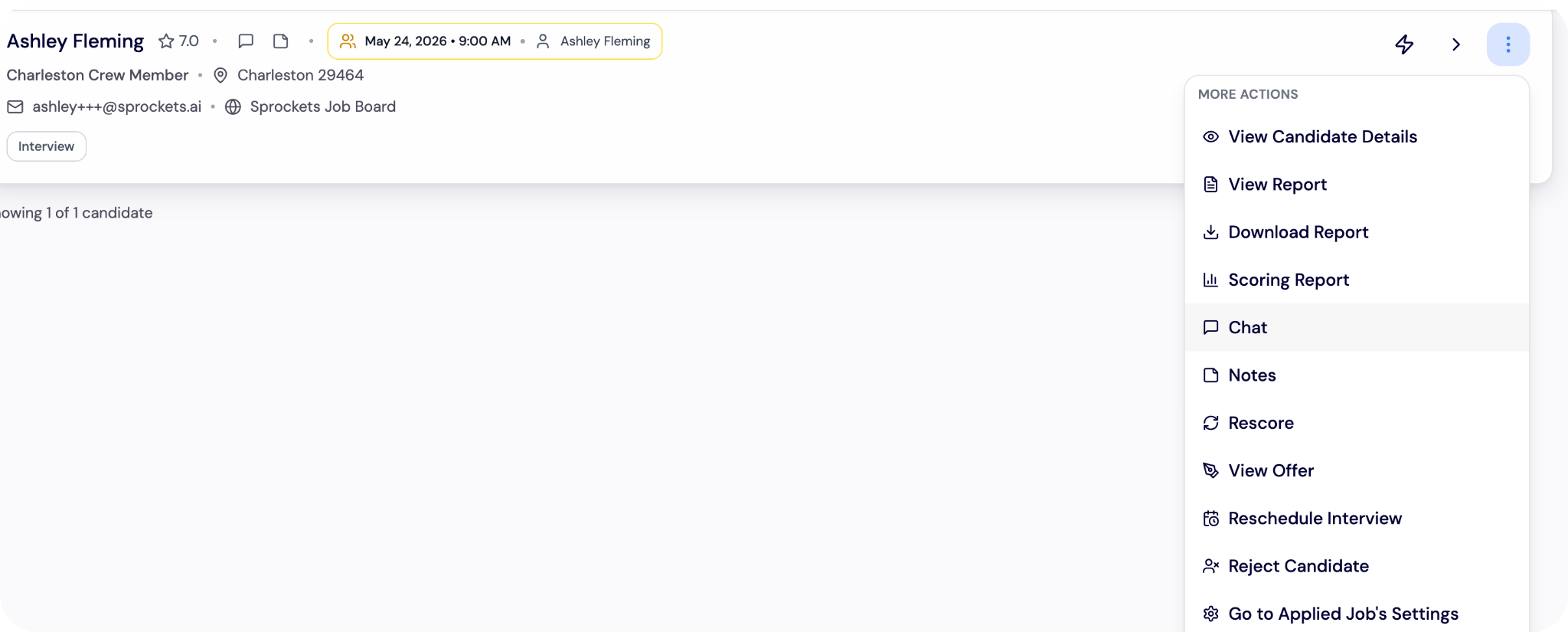
Open the more actions or chat option
Open the more actions or chat option.
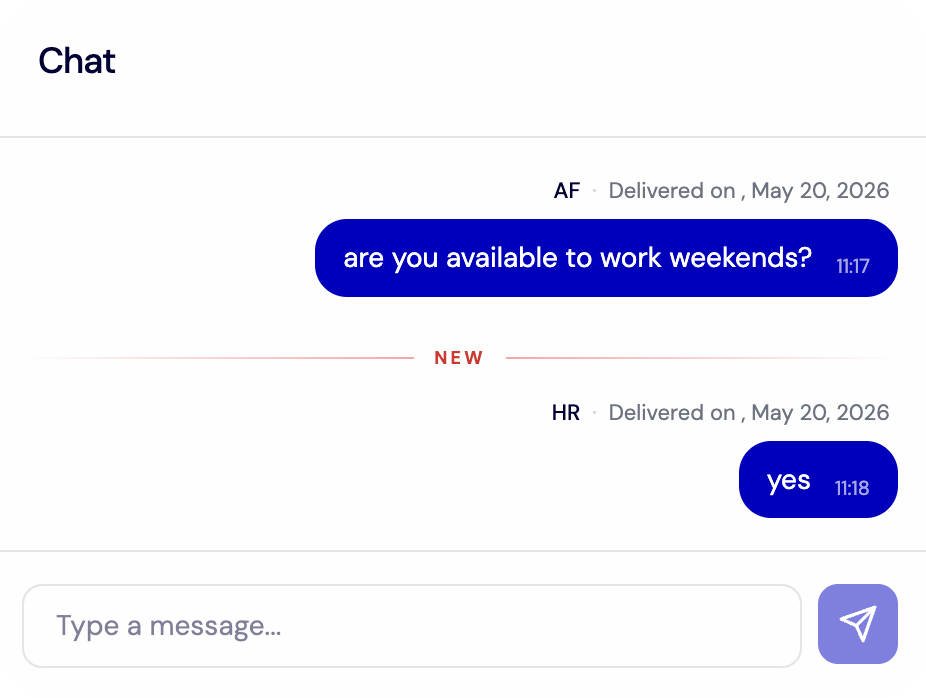
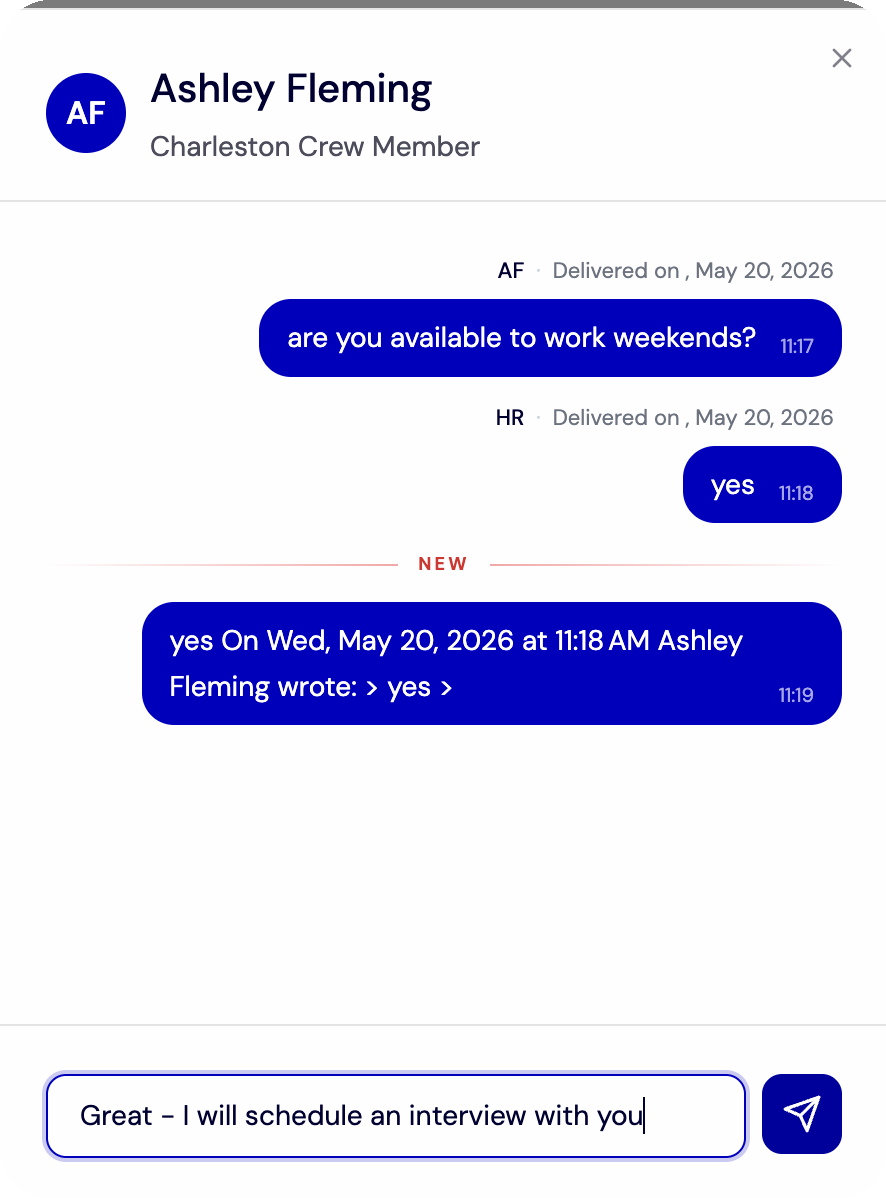
4
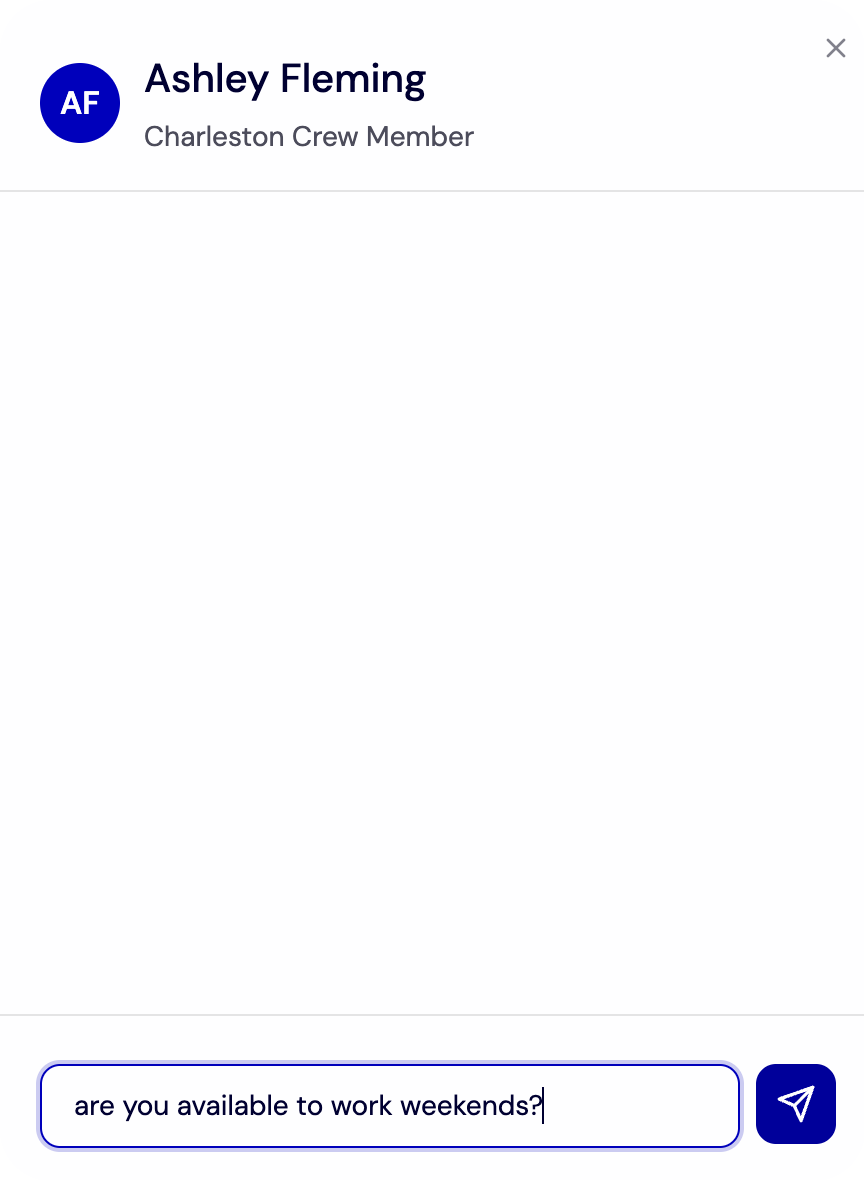
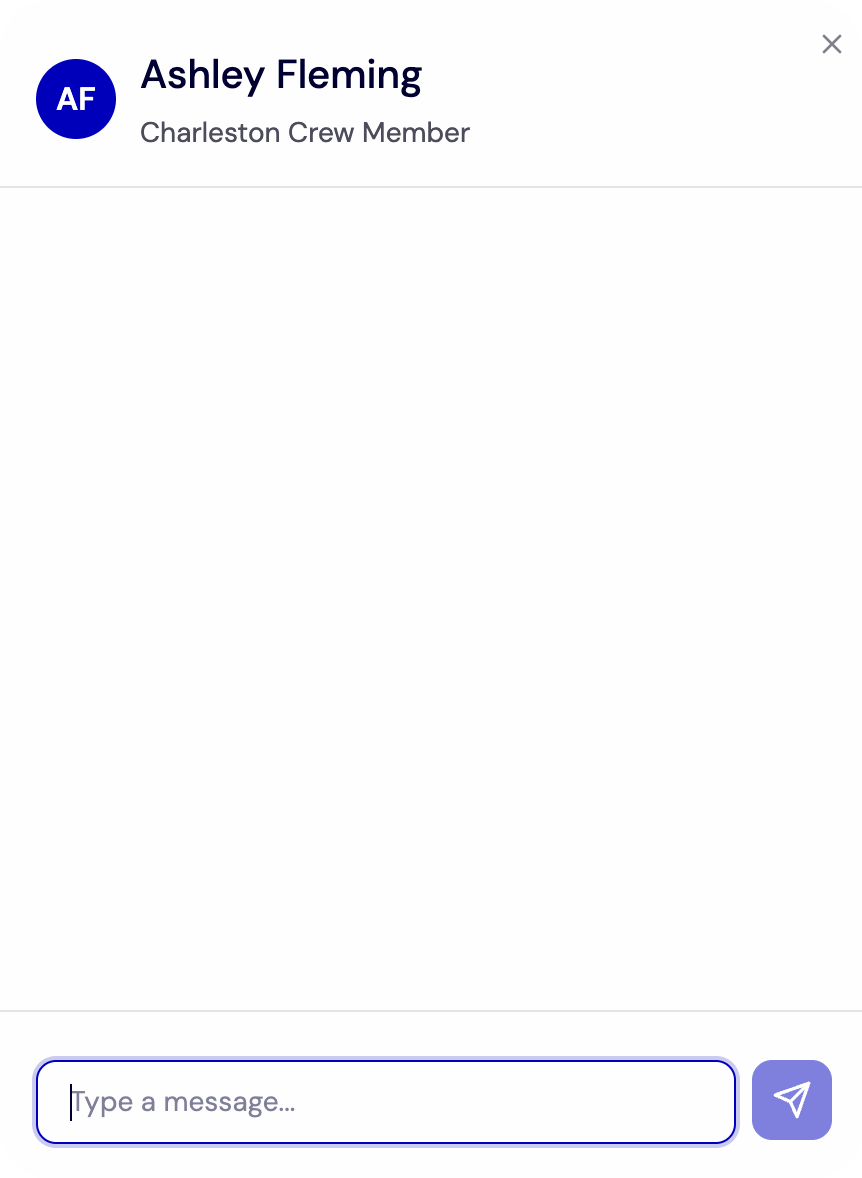
Write your message
Write your message.
5
Review the message for clarity
Review the message for clarity.
6
Send the message
Send the message.
Final check
What to check before you move on
- ✓The update is saved successfully.
- ✓The correct users, locations, jobs, or candidates are selected.
- ✓Any related automation, notification, or scheduling settings are turned on where needed.